The side panel, projects and saved areas
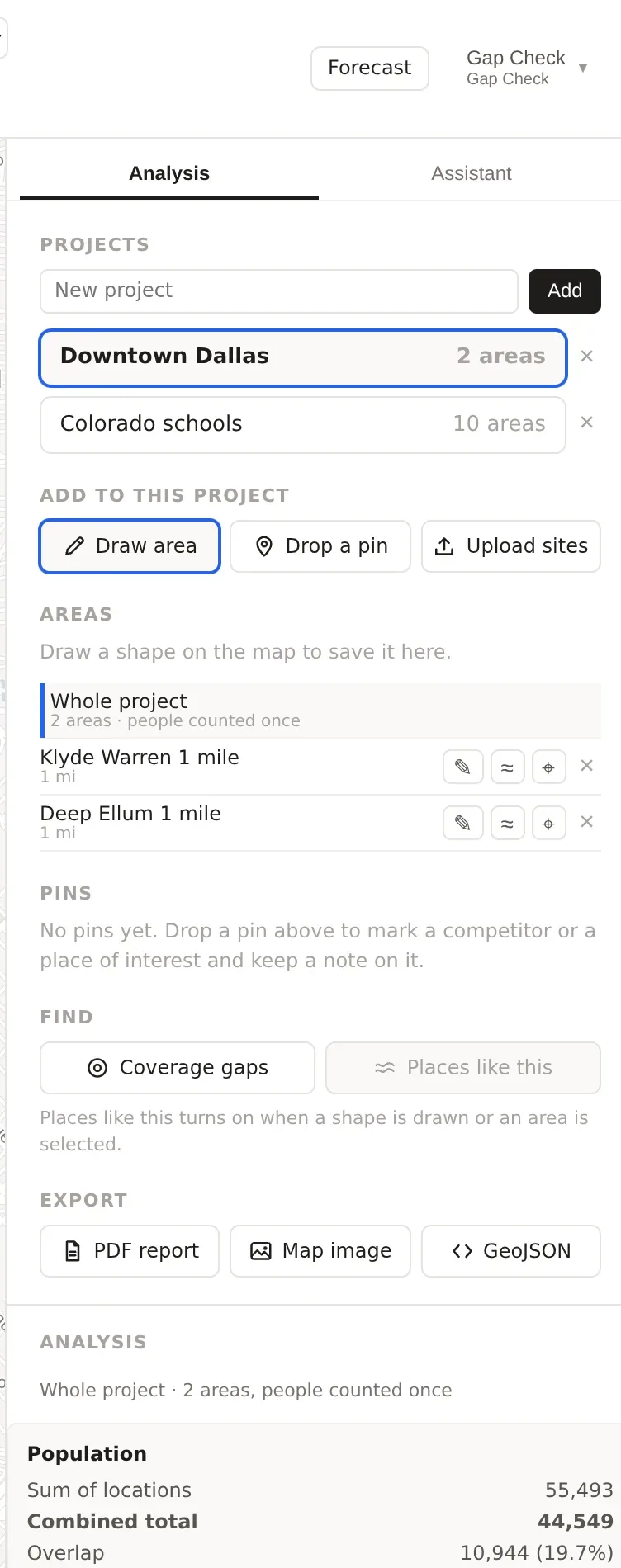
The panel on the right of the map, namely the project list, the three ways to add to a project, the saved areas with their combined total, the Find and Export buttons, and the Analysis section that shows the figures for whatever is drawn or selected.
What this is for
The panel down the right side of the map is where your work is kept and where the first figures appear. Two tabs sit at its top, Analysis, which is everything this page describes, and Assistant, which is a conversation with the product's assistant and has a page of its own. The Analysis tab has two halves. The upper half is about the project, namely which project you are in, how to add areas, pins and sites to it, the areas you have saved, and the buttons that find new sites and export the work. The lower half, headed Analysis, shows the figures for whatever is drawn or selected, with the button that opens the full analysis page at its top.
This page goes through the panel from top to bottom. If you have not drawn anything yet, Your first analysis is the place to start, and this page will make more sense once you have a shape on the map.
Where to find it
The panel is always on the right of the map on a desktop screen. On a phone it becomes a sheet at the bottom of the screen that you pull up, with the same sections in the same order. Everything in the upper half is included in every plan, except where a button says it is part of the Pro and Team plans, in which case it shows a short note and a link to the plans instead of acting.
Getting started box
Until you have saved your first area, the top of the panel shows a short checklist headed Getting started, with four steps, namely find a place, draw a trade area, create a project and save your shape into it. Each step gets a check mark as you do it, and the box disappears once the first area is saved. It is there to get a new account to its first saved area and nothing more.
Projects
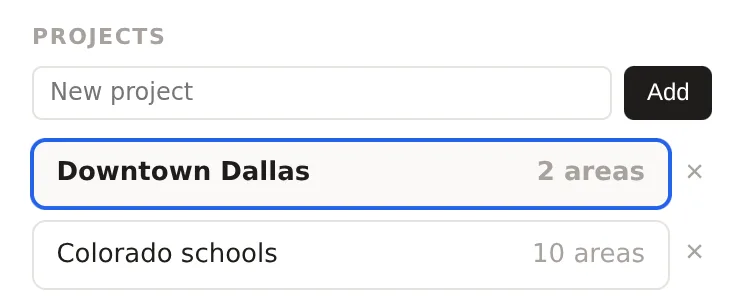
A project is a folder for the areas, pins and uploaded sites that belong to one piece of work, such as one client, one city or one round of site selection. The Projects section lists yours. Click a project to select it, and its saved areas appear on the map and in the Areas section below. The selected project is where new areas are saved and where the Find and Export buttons act.
To create a project, type a name into the New project box and press Add. Each project in the list shows how many areas it holds. To remove one, use the cross beside it, which asks you to confirm, because removing a project removes every area, pin and site in it.
The free plan includes one project. The Pro and Team plans have no limit, and on a Team plan every member of the team sees the same projects.
Add to this project
Once a project is selected, a row of three buttons under Add to this project gives the three ways to put something into it.
Draw area is the ordinary way. It sets the map up to draw, with the kind of shape chosen in the toolbar above the map, and the shape you draw is offered for saving in the Areas section. The map describes the kinds of shape.
Drop a pin switches the toolbar to Pin, so that a click on the map drops a marker with a note, and a click on a listed business pins that business. A pin marks a competitor, a candidate corner or anything else worth a note, without drawing an area. Pins are part of the Pro and Team plans.
Upload sites opens a dialog for bringing in the sites you already have, from a spreadsheet of addresses or coordinates, a pasted list, a GeoJSON file, a KML file or a zipped shapefile. Each site becomes a saved area in the project. Uploading is part of the Pro and Team plans, and Uploading your sites explains the formats.

Areas
The Areas section is where a drawn shape is saved and where saved areas are listed. When you have drawn a shape and not saved it, the section shows it with a name box, which reads Location 1 for the first, a Save to project button and a Clear shape button. Type a name you will recognize in a list later and press Save to project. Clear shape throws the drawn shape away.
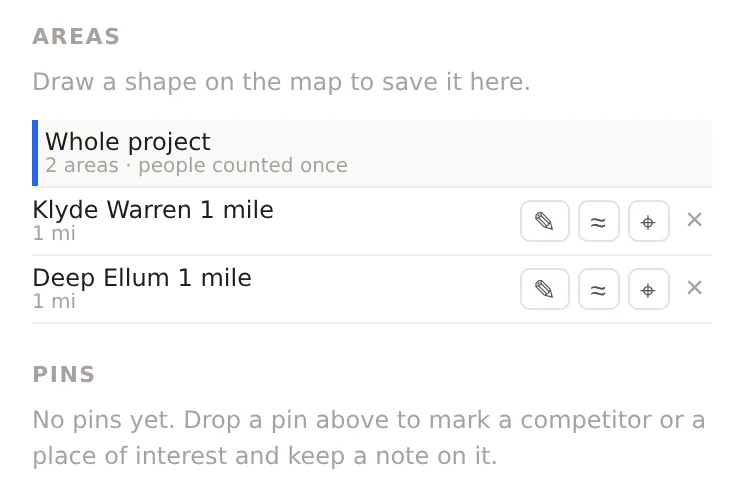
Each saved area is listed by name with its size or setting beneath it, such as 1 mi for a one mile radius. Click a name to select that area, which draws its figures in the Analysis section and highlights it on the map. Beside each area are a pencil, which opens it for editing, its shape and its name, a wave symbol, which looks for the neighborhoods in the metro most like it (the Places like this tool, described below), a crosshair, which puts the drawing pin on its center so that a new radius or travel time is drawn from there, and a cross, which removes it. Selecting an area and drawing a new shape offers to replace the area's shape or to add the new shape beside it as a new area, so that you can adjust an area without losing its name.
An area remembers its earlier shapes. Opening an area's history lists each shape it has had, and each one can be shown on the map or made the area's shape again, so that an edit is never a loss.
Whole project
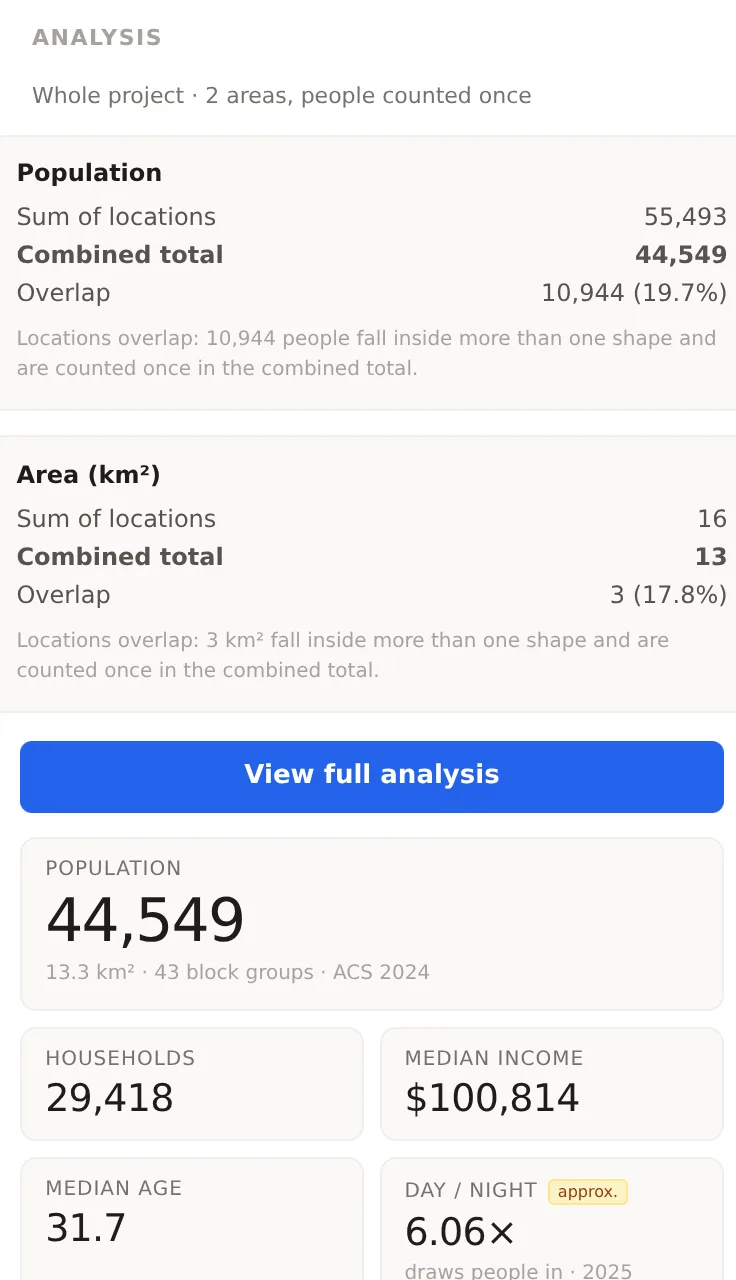
At the top of the list is Whole project, with the number of areas and the words people counted once beneath it. Selecting it shows the figures for every area in the project together. Where areas overlap, the people in the overlap are counted once, and the Analysis section opens with two small tables, one for population and one for area in square kilometers, each with three lines, namely Sum of locations, which is what you would get by adding the areas up, Combined total, which counts each person or square kilometer once, and Overlap, which is the difference with its share of the sum. A large overlap tells you that two of your areas are competing for the same people, which is the first sign of cannibalization.
The free plan saves up to four areas. The Pro and Team plans have no limit.
Pins
Between Areas and Find is a Pins section, which lists the pins dropped in the project with their notes, or says No pins yet with a reminder of what a pin is for. Pins are part of the Pro and Team plans and have a page of their own.
Find
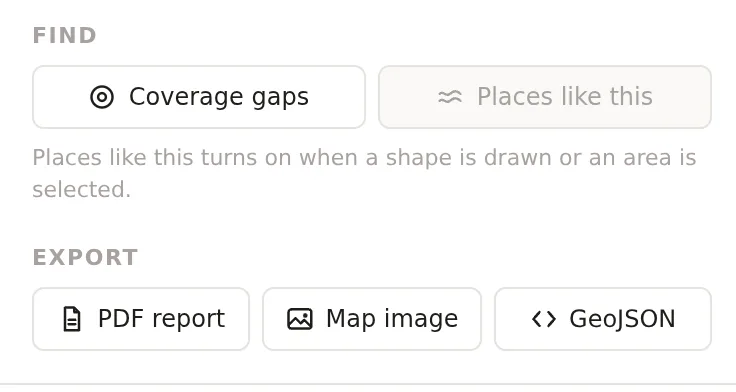
The Find section holds the two tools that look for new sites. Both are part of the Pro and Team plans, and both open in the panel in place of the project view, with a way back at the top.
Coverage gaps looks across a search area for the places where the demand you care about is not yet reached by your own locations or by competitors, and suggests where to look next. It needs a project with at least one saved area to start from, and its own help page, Coverage gaps, explains the factors, the reach and the suggestions.
Places like this takes the selected area and finds the places across a city, a state or the country that most resemble it on the figures you choose. It is greyed out until an area is selected, because it needs something to resemble. Its page is Places like this.
Export
The Export section holds three buttons for taking the work out of the product. Each acts on the selected project.
PDF report builds a report with every area in the project, its figures and charts, and the comparisons, in a document you can send. On a Team plan the report carries your own branding. PDF reports are part of the Pro and Team plans. The PDF report describes the sections.
Map image saves a picture of the map as it is on the screen, with the project's areas drawn on it, as a PNG file. On the free plan the image carries the product's name, and on the paid plans it is yours alone.
GeoJSON downloads every area in the project as a GeoJSON file, which any mapping or GIS software can open, so that the shapes you drew here can be used elsewhere. Data exports are part of the Pro and Team plans.
Analysis
The lower half of the panel shows the figures for the drawn shape, or for the selected area, or for the whole project, and says which at its top. Before anything is drawn it reads Draw an area with a short note on how. While the figures are being worked out it reads Updating. Once a project is selected, a blue View full analysis button sits at the top of the section and opens the analysis page for the project, which The analysis page explains.
The first four tiles are Population, the people who live in the shape, Households, the occupied homes, Median income, the household income in the middle, and Median age. Beneath them, Day / night is the number of people in the shape during the working day for every resident. On the Pro and Team plans each tile carries a chip that gives the figure as an index against the metro, with the metro at 100, so that a chip reading 143 on median income means 43 percent above the metro.
Further down, on the Pro and Team plans, three more sections appear. Jobs shows the jobs located in the shape by industry, from the Census Bureau's workplace counts. Traffic shows the busiest counted road within reach of the shape, its daily count and its pattern through the week, or says No counted road within 3 km when there is none. Newly listed and no longer listed counts the businesses that appeared in the latest monthly capture and those that have dropped out, with an index against the metro for each.
An example
On 29 October 2026 a project with two saved areas in Dallas, a one mile radius circle on Klyde Warren Park and another on Deep Ellum, showed Sum of locations 55,493, Combined total 44,549 and Overlap 10,944 under Whole project. The two centers are a mile apart and each circle reaches a mile out, so the circles share a lens of downtown between them, and 10,944 people, about a fifth of the sum, live in that lens. A reader planning two stores would read that as real overlap, with one person in five counted by both. Had the centers been two miles apart, the circles would only have touched and the overlap would have been close to nothing.
Things to know
Everything in the upper half of the panel acts on the selected project. If a button seems to do nothing, check which project is selected.
A drawn shape that is not saved is lost on reload. Save anything you want to keep.
Removing a project removes everything in it and cannot be undone. Removing an area keeps its history for nothing, so if you want an area's old shape back, use its history instead of removing it.
On a phone the panel is a sheet, and the Find tools open in the full screen rather than in the panel.
Related pages
Your first analysis walks through the first save. The map, the search box and the layers covers the controls above the map. The analysis page is where View full analysis leads, and the glossary defines project, index and the other terms used here.