Uploading your sites
Bringing in the sites you already have from a spreadsheet, a pasted list, a GeoJSON file, a KML file or a zipped shapefile, with the columns the product looks for, the shape each site gets, the check before import and the limits.
What this is for
Most organizations already have a list of sites. A chain has its stores, a broker has a client's locations, a franchisor has its territories, a lender has its branches. Uploading turns that list into saved areas in a project in one step, each with the shape you choose, so that fifty stores get their one mile circles or their ten minute drive times without anyone drawing fifty shapes by hand.
Once uploaded, the sites are ordinary saved areas. They appear on the map and in the Areas section, the project's combined total counts them, the analysis page compares them side by side, the criteria screener judges them, and a sales forecast can be fitted to them if the list carries their sales.
Where to find it
In the panel's Add to this project row, Upload sites opens the upload dialog. A project must be selected, since the sites go into it. Uploading is part of the Pro and Team plans, with an allowance of sites a day shown in the dialog and on the usage page in settings.
What you can upload
A spreadsheet. A CSV, a tab-separated file or an Excel workbook, one site per row, with a header row that names the columns. The product reads the headers and works out which column is which, as the next section describes.
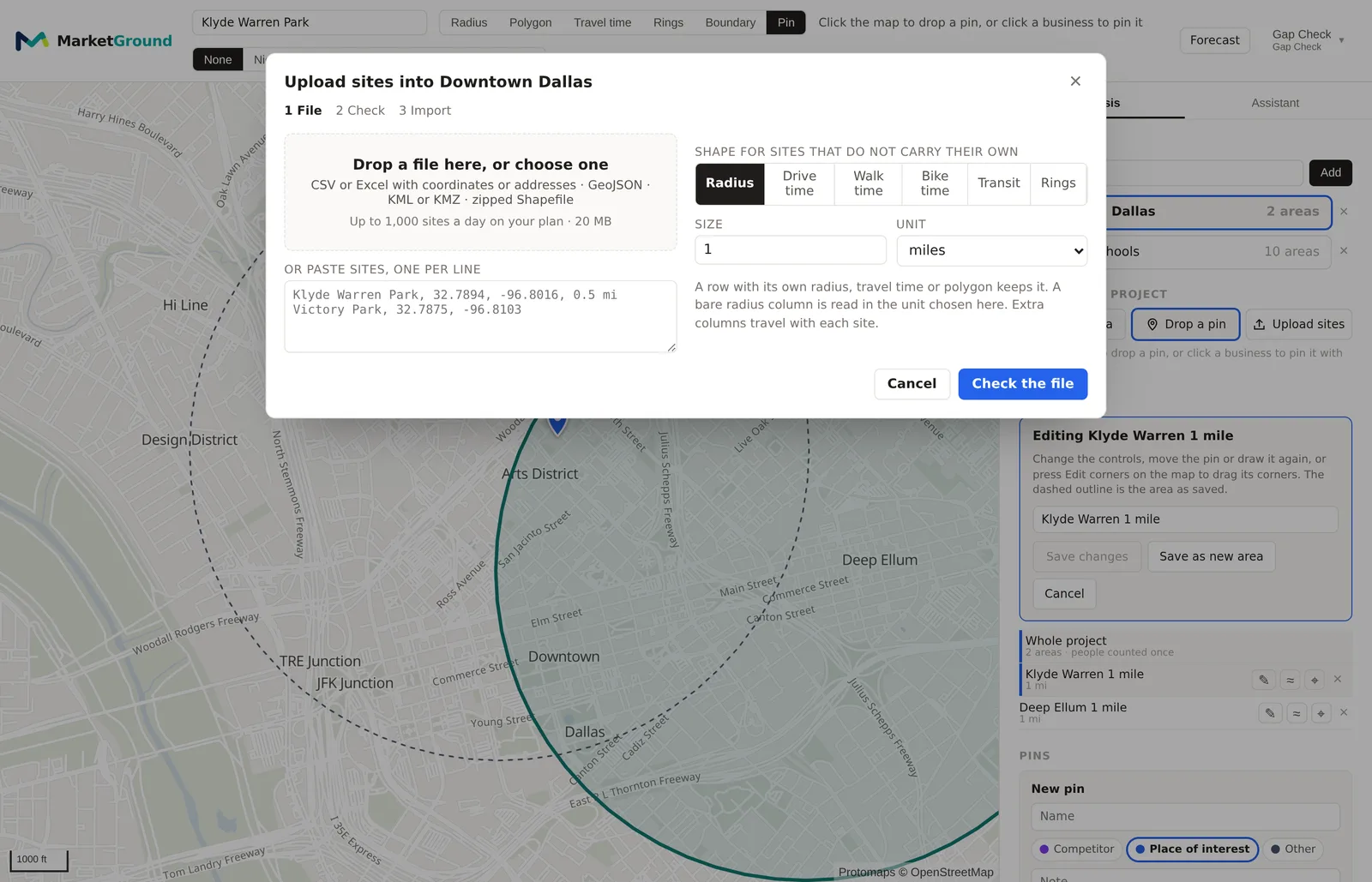
A pasted list. Type or paste lines straight into the dialog, one site per line, in the form the box shows, such as Klyde Warren Park, 32.7894, -96.8016, 0.5 mi. The name comes first, then the latitude and longitude, then optionally a radius. A line can also be an address.
GeoJSON. A file of points or polygons. A point becomes a site at that point, and a polygon becomes a site with that outline as its shape. Properties on each feature can supply the name and any other fields.
KML or KMZ. The same, from Google Earth or a similar tool.
A zipped shapefile. A .zip holding the .shp, .shx and .dbf files of one shapefile, with its attributes as fields.
A file may be up to 20 MB and up to 10,000 rows, and the plan's daily allowance is applied after that.
The columns the product looks for
A site needs a place and a shape. The place can be a latitude and longitude, an address, or a polygon in the file. The shape can be a radius or travel time on the row, the polygon itself, or the default you choose in the dialog. The most specific definition wins, so a row's own polygon beats a travel time on the row, which beats a radius on the row, which beats the default.
The product matches column headers after lower-casing them and ignoring spaces and dashes. These are the headers it recognizes.
| What | Headers recognized |
|---|---|
| Name | name, site, site name, store, store name, title, label, location, place |
| Latitude | lat, latitude, y |
| Longitude | lon, lng, long, longitude, x |
| Both together | latlon, lat lon, latlng, coordinates, coords |
| Full address | address, full address, street address, addr |
| Street | street, address1, address line 1 |
| City | city, town, municipality |
| State | state, st, province |
| ZIP | zip, zipcode, zip code, postal, postal code, postcode |
| Radius | radius, and a unit such as radius mi or radius km |
Any other column is kept as a field on the site and shown in the preview and the analysis page, which is how a store's sales figure reaches the sales forecast. A row without a name is named from its address or coordinates.
Addresses are geocoded by the Census Bureau's geocoder, which places an address along its street from the Bureau's address ranges. Split columns, street, city, state and ZIP, are sent in a batch and are the most reliable. A single address column is split when it can be and sent one line at a time when it cannot. An address the geocoder cannot match is marked on its row and the rest of the upload goes ahead.
The default shape
Under Shape for sites that do not carry their own, choose what every site without its own polygon or radius should get. The choices are Radius, Drive time, Walk time, Bike time, Transit and Rings, with a size or minutes box beside them. Rings offers the same band editor as the toolbar, with bands in distance or in minutes. The default is a radius of one mile, as on the map.
Travel time shapes are routed one site at a time in the background and take longer than circles, roughly a second or two each, so an upload of five hundred drive times takes several minutes. The dialog shows the progress and can be closed while the import runs.
The check before import
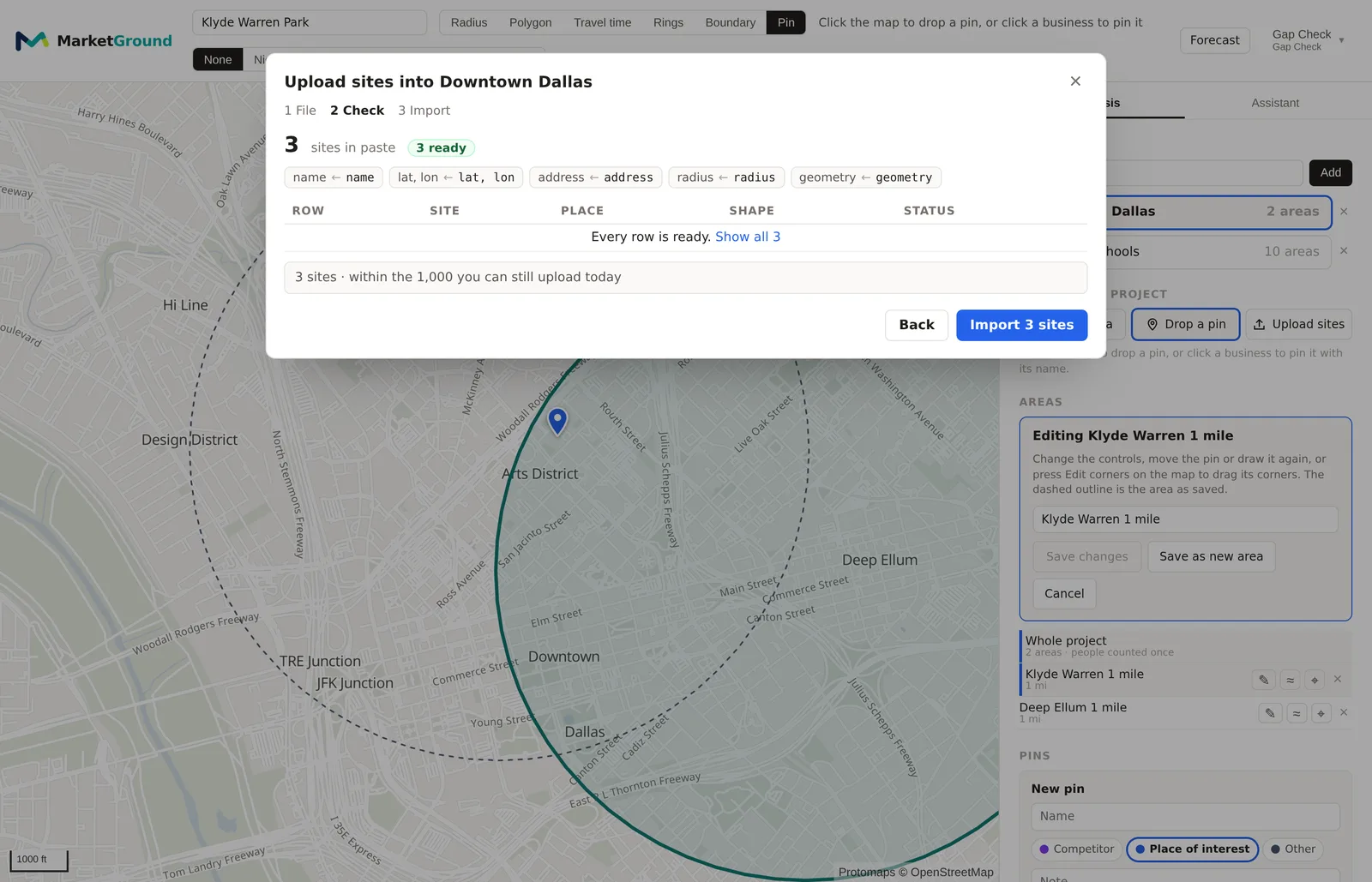
The dialog has three steps, File, Check and Import, shown across its top. Pressing Check the file on the first step reads the file and opens the second, which is a preview. It begins with how many sites were found and how many are ready, and with the columns as the product read them, such as name ← store when a column called store was taken as the name. Every row is listed with its name, its place as the product read it, such as a pair of coordinates, an address or "polygon, 1,204 vertices", the shape it will get, and a status. Ready rows will be imported as they are. Rows that need attention will be imported but with something to know, such as a duplicate of another row. Rows that cannot be imported are listed with the reason, such as an address that could not be matched or coordinates that are not in the United States, and are skipped.
The preview also says whether the upload fits the plan's allowances. If it does not, it says which allowance stops it, saved areas or uploaded shapes for the day, and how many would fit, before anything is imported.
The import
Press Import, which names the count, such as Import 12 sites, and the sites are saved one at a time in the background. The dialog shows how many are done, and an indicator in the top bar shows the import is running if you close the dialog. When it finishes, the sites are in the Areas section and on the map. A very large project shows its headline figures first and the rest as they are computed.
An example
A CSV of twelve Dallas stores with columns store, address, city, state, zip and annual_sales, uploaded with a default of a ten minute drive time, becomes twelve saved drive time areas named after the stores, each carrying its sales as a field. The project's analysis page then compares the twelve side by side, and the sales forecast under Forecast in the top bar can fit a model to the twelve sales figures against the demographics of their drive times, which The sales forecast explains.
Things to know
A file is read in memory and nothing in it is followed as a link or run as code. A KML with a reference to another file or a web address is read for its placemarks alone.
A row with both coordinates and an address uses the coordinates. A row with an address in a country other than the United States cannot be placed.
The daily allowance counts sites imported, not sites in the file. Rows that cannot be imported do not count.
Duplicates are marked rather than refused, because two stores at one address can be real. Remove the duplicate from the file or let both in and delete one afterwards.
Related pages
The side panel describes the row the Upload sites button sits in. Radius and polygon areas, Travel time areas and Rings and bands describe the shapes a site can be given. Plans, limits and usage describes the daily allowance.