Help › Forecasts, sharing and the assistant
The sales forecast
A model fitted to the sales figures of the stores you already run, against what the product measures around each one, that scores any candidate site in your own currency with a likely range, its drivers and the error the model made on stores it never saw.
What this is for
The analysis page says what is around a site. A sales forecast says what that is worth in your own figures. You upload the stores you already run with a sales column, the product measures the same trade area around each of them, fits a model of sales against those measurements, and tells you how well the model predicted stores it was not fitted on. Then it scores any site in any of your projects with a predicted figure, a likely range, the measurements that drove it, and a flag when the site looks unlike anything in your estate.
A forecast explains the part of a store's figure that its trade area explains. The operator, the building and the lease explain the rest, and the report shows how much was left unexplained rather than hiding it.
Where to find it
Forecast in the top bar of the map and the analysis pages opens the forecast page. The Compare tab's Sales forecast card leads there too. The forecast is part of the Pro and Team plans, and it needs an estate of at least fifteen stores with a sales figure each.
Step by step
- Upload your stores into a project from a spreadsheet that has a sales column beside the address, as Uploading your sites describes. The sales column is kept as a field on each site.
- Open Forecast and press New forecast.
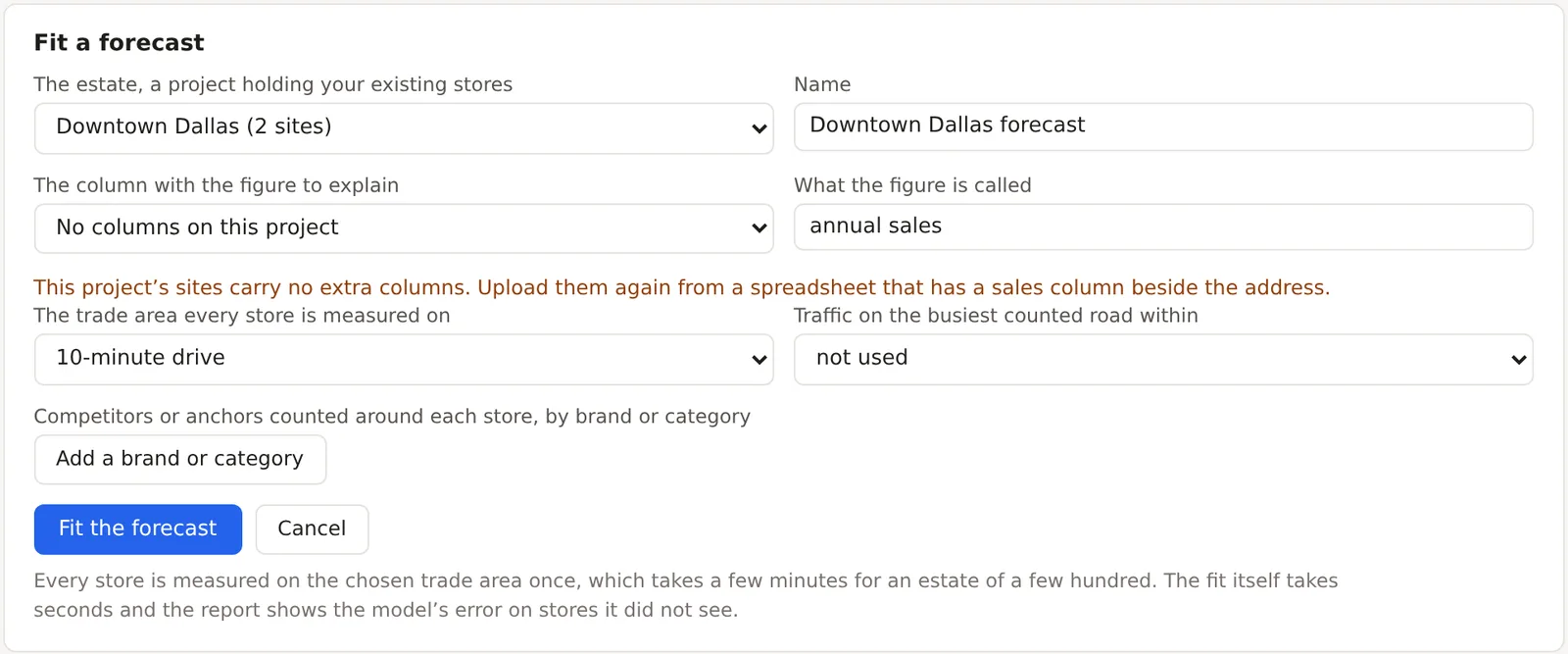
- Choose the estate, the project holding your existing stores, and give the forecast a name.
- Choose the column with the figure to explain, which lists the numeric columns the upload carried, and say what the figure is called, such as annual sales, which is how the predictions will be labeled.
- Choose the trade area every store is measured on, the saved shape, a 1, 3 or 5 mile radius, or a 10 minute drive. Every store is measured on the same one, so the model compares like with like.
- Optionally choose a distance for traffic on the busiest counted road, and add brands or categories to count around each store with Add a brand or category, which become measurements the model can use.
- Press Fit the forecast. Every store is measured once, which takes a few minutes for an estate of a few hundred, and the fit itself takes seconds.
How the model is fitted
The measurements are everything the analysis produces for the trade area, namely every catalog variable, the daytime and jobs figures, the derived densities, any brand or category counts you named, the busiest counted road, and any other numeric columns from your upload. The sales figure is taken in logarithms and must be above zero.
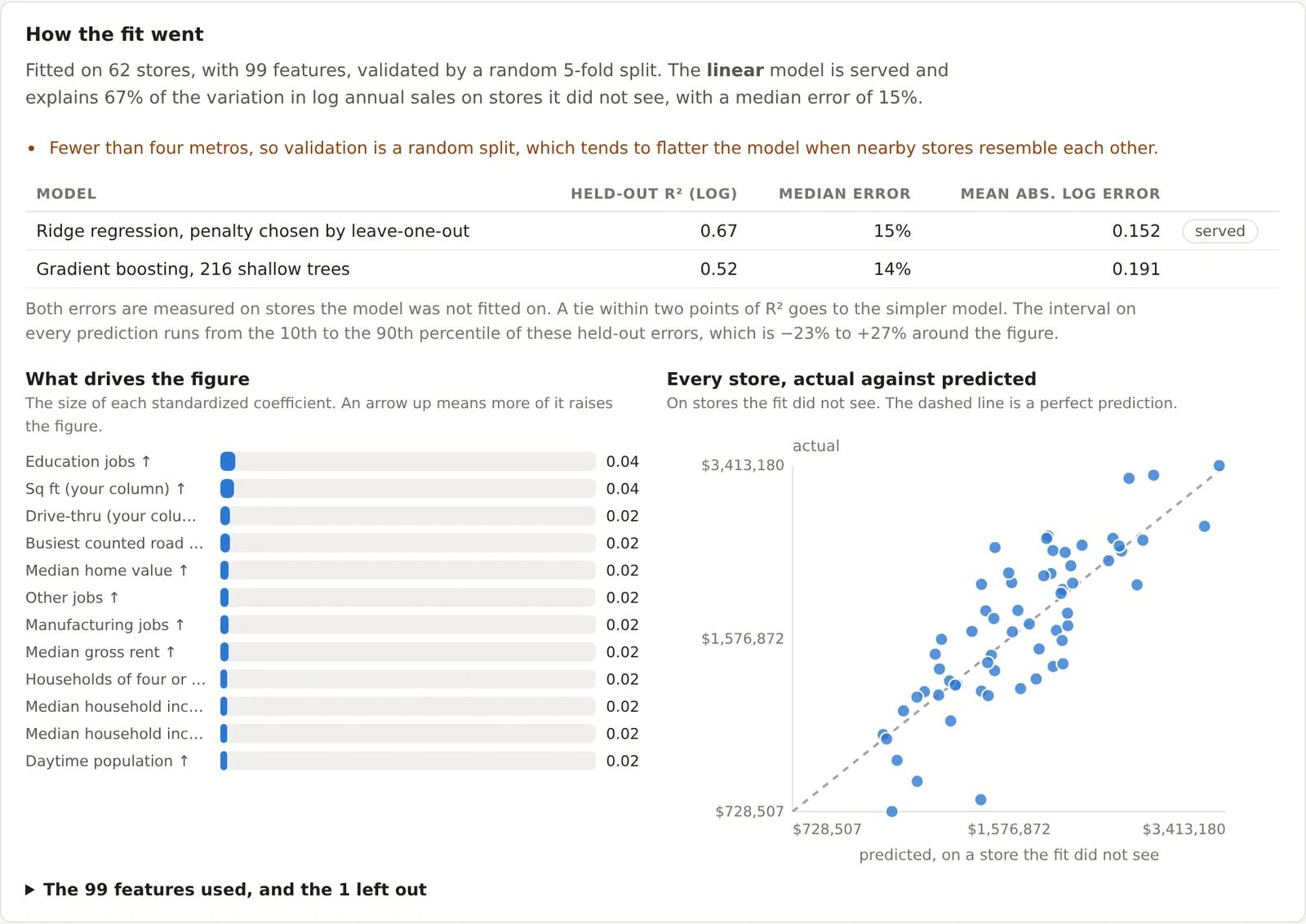
Two models are fitted. A ridge regression on standardized features, with its penalty chosen by leave-one-out, is fitted on every estate of fifteen or more usable stores. A gradient-boosted model of shallow trees is fitted beside it on estates of sixty or more, with its number of rounds chosen by early stopping. Both are judged on stores they were not fitted on, holding out one metro at a time where the estate spans four or more metros and a seeded five-fold split otherwise. The served prediction comes from whichever did better on that held-out error, and a tie within two points goes to the simpler model.
Reading the fit report
The report for a fitted model says what the fit found and how far to trust it. The sample says how many stores were usable and how many were left out and why. The validation says how the stores were held out. Both models' held-out errors are given as the R² in logs and the median error, so that an estate where the model explains half the variation reads as such. The drivers list the measurements that move the prediction most, with each one's range across the estate. The residual plot draws every store's actual figure against its out-of-fold prediction on log axes, colored by the metro it was held out with, so that a store the model got badly wrong stands off the diagonal. Under fifty stores the report says the error is a rough guide.
Scoring sites
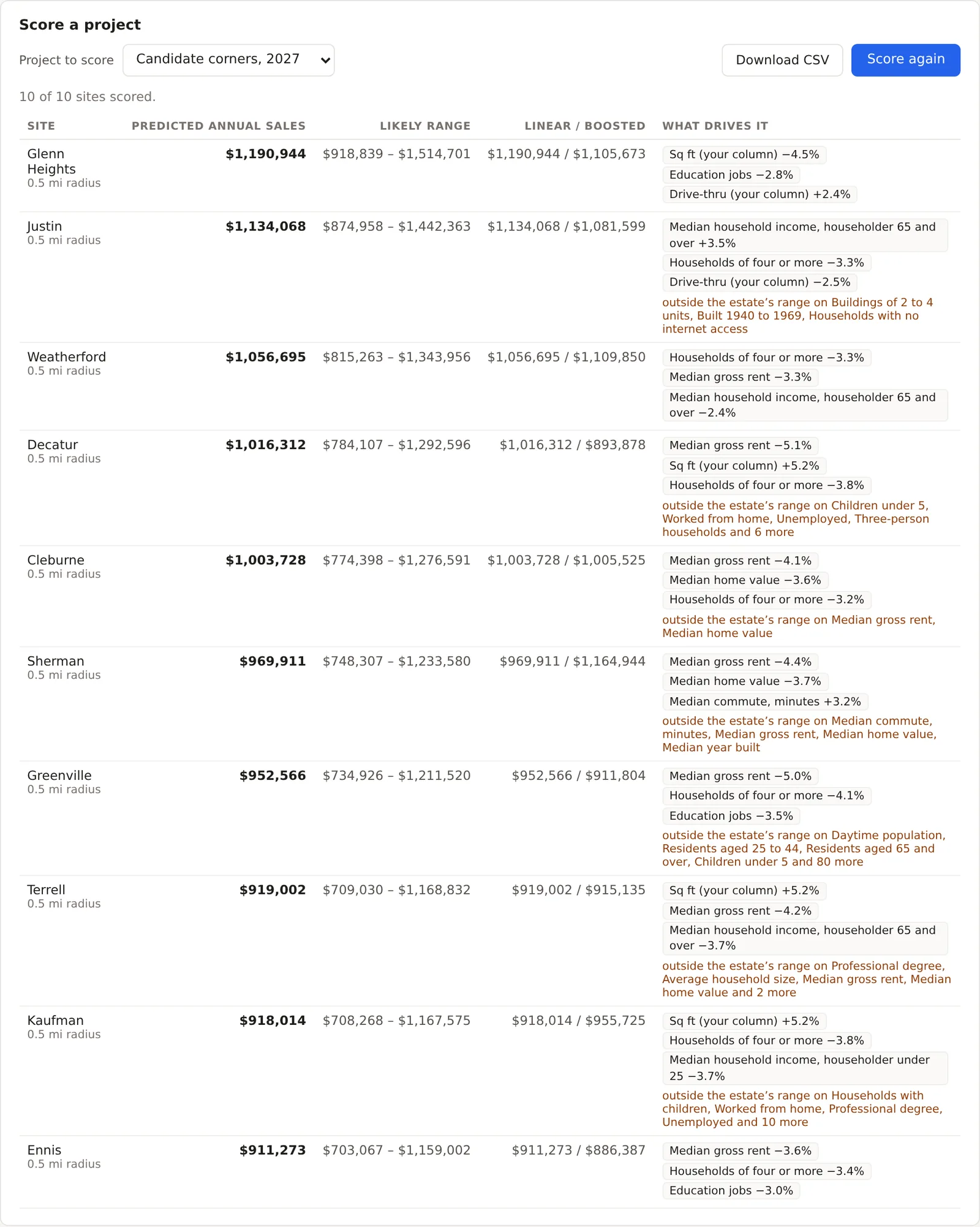
Score a project scores every site in any of the organization's projects with the fitted model. The table gives each site's prediction in your figure, its likely range from the 10th to the 90th percentile of the held-out errors, what drives it, the measurements pushing the figure up or down, the linear and boosted models' figures side by side, and the actual figure where the site is one of the estate's own stores. A site whose measurements lie outside the range the estate spans, or whose distance from the estate as a whole is beyond what the estate itself contains, is flagged, because a model should not be trusted far from the stores it learned on. The table can be saved as a CSV.
An example
A chain that uploads 80 stores with annual sales and fits on a ten minute drive gets both models, a held-out R² that says how much of the variation between its stores the trade areas explain, and a drivers list that might name daytime population, households above $100,000 and the count of a competitor as the three that matter. Scoring a project of twelve candidate corners then gives each a figure in dollars with a range, and flags the two in a kind of place the chain has never traded in. The flag is the finding as much as the figure.
Things to know
The forecast needs fifteen usable stores for the simpler model and sixty for the boosted one. An estate below fifteen is refused at setup rather than fitted badly.
The held-out error is honest only as far as the stores are independent. Where nearby stores resemble each other the report says the figure flatters the model.
A prediction is a figure for the trade area, in the survey year's data. The operator, the building, the lease and the year it opens are not in it, and the report says how much was left unexplained.
Refit after your estate changes, and rescore after a project's sites change. Both are a button.
Related pages
Uploading your sites brings the estate in with its sales column. The Compare tab points to the forecast. The site criteria screener judges sites by thresholds rather than by a fitted figure, and the methodology page gives the models and the validation in full.