Help › Competition and finding new sites
Coverage gaps
Finding the demand in a metro or a state that a project's locations do not reach, and the sites that would reach the most of it, with the search area, the locations switch, the demand factors and weights, the reach and distance weighting, competitors, the suggestions, the results table and the drive time check.
What this is for
A chain with stores in a metro wants to know where the people it serves live that no store yet reaches, and where a new store would reach the most of them. Coverage gaps answers that. It builds a map of demand across a metro or a state from the factors you choose, children by age, households by income, jobs, and so on, with the weights you set, subtracts what your existing locations already reach, and suggests the sites that would reach the most of what is left, one after another, each net of the ones before it.
A suggestion marks where the unreached demand is, not a property that is available, which is why each one can be analyzed as an ordinary area with one press.
Where to find it
In the side panel's Find row, Coverage gaps opens the search in place of the project view. A project must be selected, since the search starts from its locations, and the panel says so without one. On a wide screen the suggestions go to a table under the map and the panel keeps the summary. Part of the Pro and Team plans.
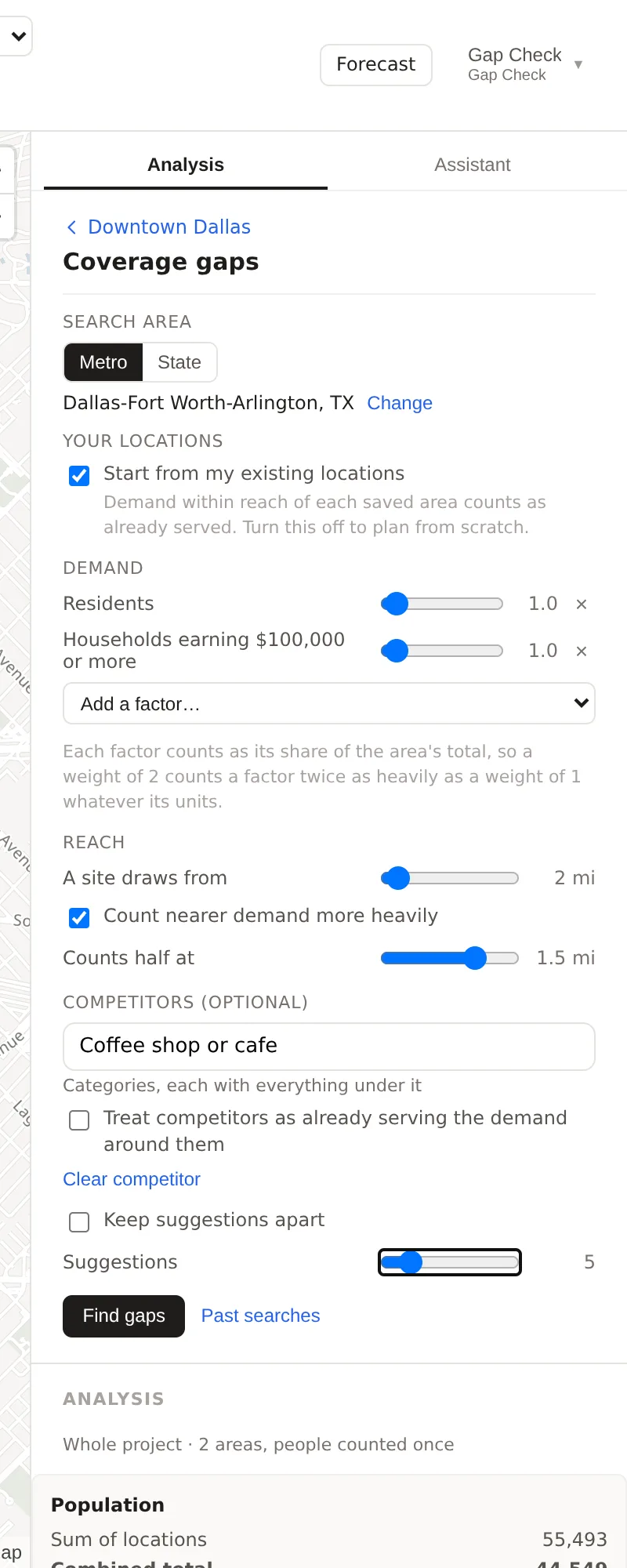
The settings, one at a time
Search area. A metro or a state. Search for the metro by name, or choose a state. Demand is counted inside the search area only. The area is divided into cells of about three quarters of a square kilometer for a metro and coarser cells for a large state so that a search stays within seconds, and each cell holds its block groups' values apportioned by the same weights every analysis uses.
Your locations. The switch Start from my existing locations is on by default. Demand within reach of each saved area counts as already served, whatever shape the area was saved as, measured from its center. Turn it off to plan from scratch, in which case every suggestion is new ground.
Demand. The factors that make up demand, each with a weight. Residents is there at weight 1 to begin with, and Add a factor offers residents by age band and education, households by income, tenure and age of householder, homes built since 2010, and jobs by kind, including office, health care and retail jobs. Each factor counts as its share of the area's total, so a weight of 2 counts a factor twice as heavily as a weight of 1 whatever its units, and the weighted demand sums to one over the area. The cross beside a factor removes it. Race, ethnicity and household composition are not factors, for the reason Places like this gives.
Reach. A site draws from a distance, 3 miles by default, and a site reaches the cells whose centers lie within it. Count nearer demand more heavily turns on distance weighting, with a second box for the distance at which demand counts half. With it on, a cell at that distance counts half, a cell at twice it a quarter, and nothing beyond the reach.
Competitors. Optionally, a kind of business, a category with everything under it, as on the Businesses tab. With one named, the table counts the competitors within reach of each suggestion and the demand per provider, and a second map shades each candidate's demand divided by its competitors plus one, which is the share a new site there would start from. Treat competitors as already serving the demand around them goes further and subtracts the demand within reach of each competitor as if it were one of your locations.
Keep suggestions apart. A minimum distance between suggestions. At twice the reach their areas no longer overlap.
Suggestions. How many to find, 10 by default. The first suggestion is the site that reaches the most demand nothing reaches as well already, the second the most of what remains, and so on, so each suggestion's new figures are net of your locations and of every suggestion above it. This order is the standard answer to the covering problem and is guaranteed to reach at least 63 percent of the best coverage any set of the same size could. Only cells with at least 25 residents per square kilometer are candidates, so no suggestion falls in a lake or a forest.
Step by step
- Select the project and press Coverage gaps.
- Choose the search area, add the factors that describe the demand and set their weights, set the reach and the distance weighting, and name a competitor if one matters.
- Press Find gaps. The map shades the unreached demand and numbers the suggestions, the panel shows the coverage summary and the chart, and the table under the map lists the suggestions.
- Read the table. For each suggestion, Analyze puts the pin there and runs the ordinary analysis, Save keeps it as an area in the project, and Leave this site out rejects it and suggests again without it and without everything within half the reach of it.
- Change settings folds the summary back into the settings, and Past searches lists earlier runs. The project's latest search prints in its report.
Reading the results
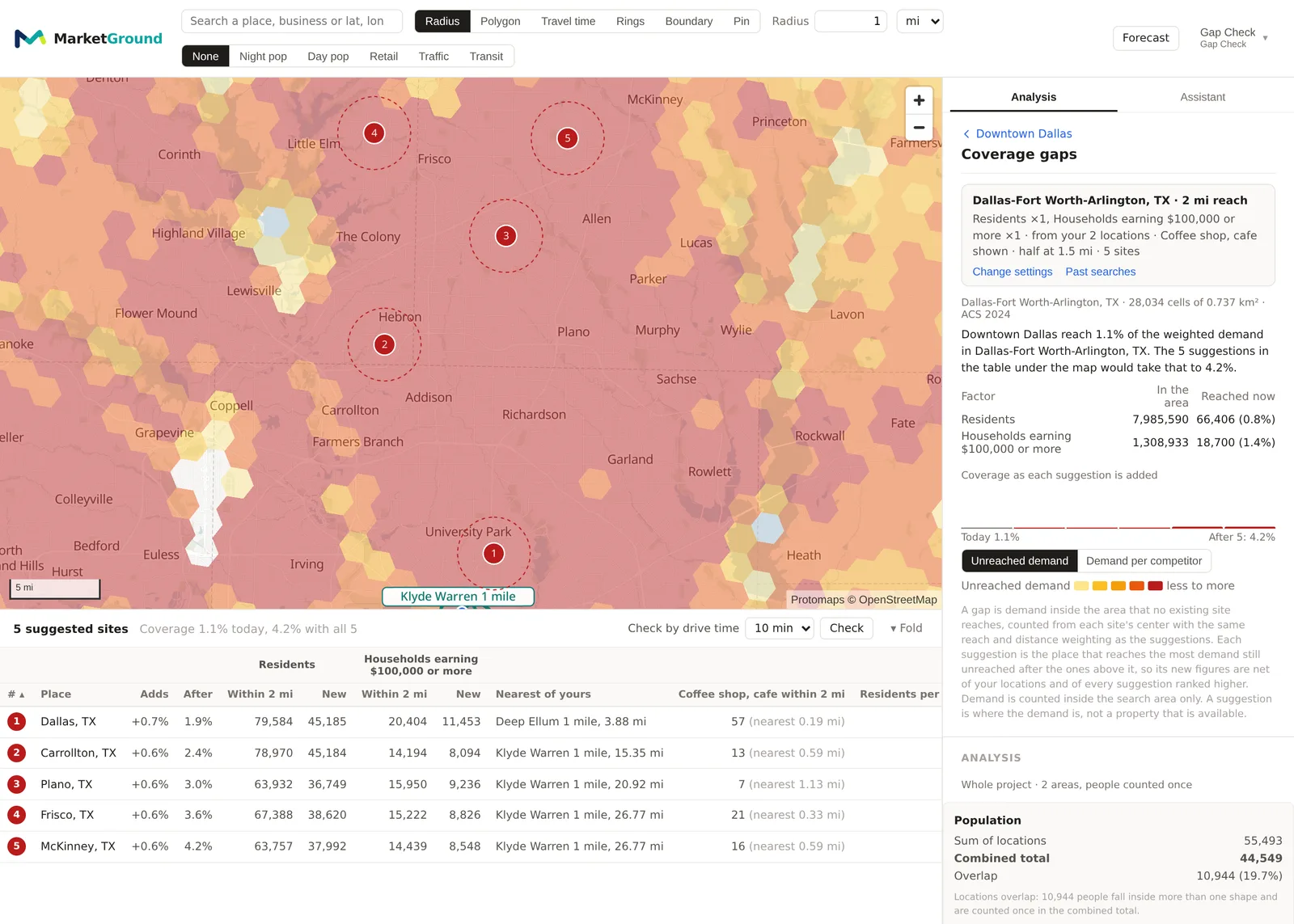
The panel summarizes the run in one line, says what share of the area's weighted demand the project reaches today and what the suggestions would take it to, and gives each factor's total in the area and the part reached now. A chart shows coverage as each suggestion is added, and a switch chooses what the map shades, unreached demand or, with a competitor named, demand per competitor.
The map shades the cells from less to more unreached demand and numbers the suggestions.
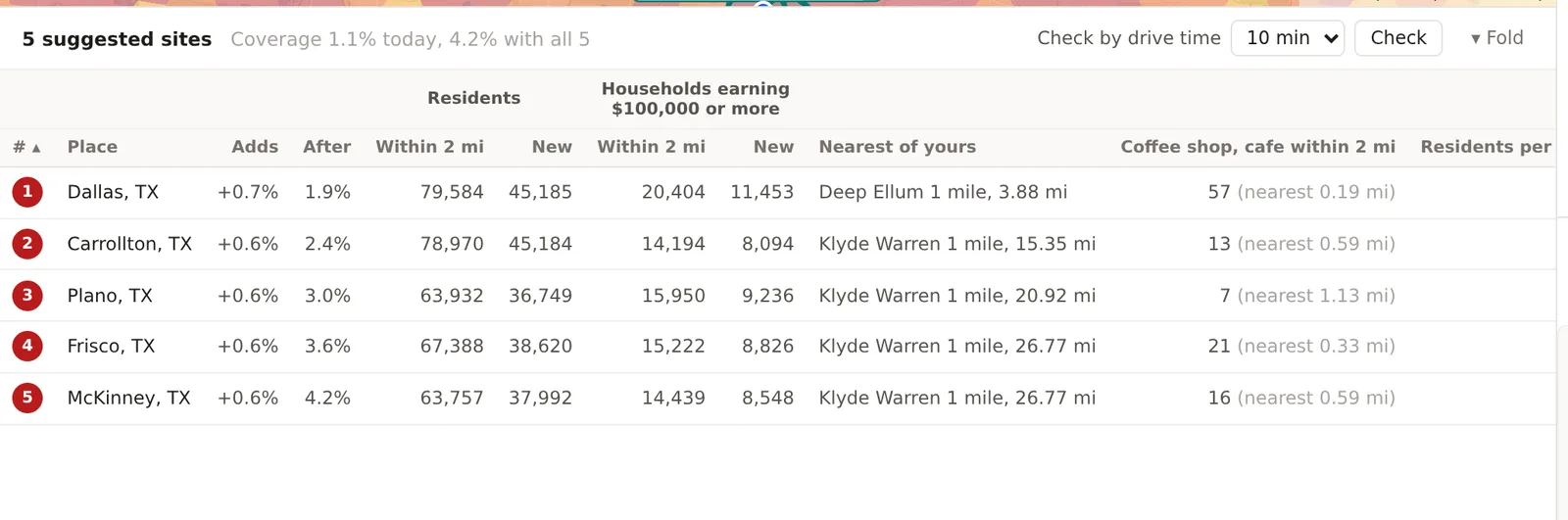
The table under the map has a row per suggestion with its place name, Adds, the share of the area's weighted demand the site adds, After, the coverage with it and every suggestion above it, then for each factor the demand within reach and the part that is new, the nearest of yours with its distance, and with a competitor named, the competitors within reach, the nearest one, and the demand per provider. The column headers sort the table, and Fold gives the map its height back.
Check by drive time. The table's reach is a circle. Choose minutes and press Check to route each suggestion's drive time area on the road network and count the demand whose cell centers fall inside it, and the part no existing location reaches, as a check on the circle rather than a second ranking.
An example
A search on 30 October 2026 from the Downtown Dallas project's two locations across Dallas-Fort Worth-Arlington, on residents and households earning $100,000 or more at weight 1 each, with a reach of 2 miles counting half at 1.5 miles and coffee shops and cafes named as the competitor, found that the two downtown circles reach 1.1 percent of the metro's weighted demand, 66,406 of 7,985,590 residents and 18,700 of 1,308,933 high-income households, and that five suggestions would take that to 4.2 percent. The first was in north Dallas, adding 0.7 percent with 79,584 residents within two miles, of whom 45,185 were new, 3.9 miles from the Deep Ellum location, with 57 coffee shops within reach and 1,372 residents per provider. The next four were in Carrollton, Plano, Frisco and McKinney, each adding about 0.6 percent, with 7 to 21 coffee shops within reach and up to 7,992 residents per provider. The ranking says what a metro-wide search of a two-store downtown project should say, namely that the demand is in the suburbs, and the competitor column says which of those suburbs are least served.
Things to know
A search counts demand from each site's center with a circle of the reach, so an existing drive time area counts as the circle around its center, not as its routed shape. The drive time check is there for the suggestions.
A large state is searched in cells of about five square kilometers, and each suggestion found there is then placed again in finer cells near it, with demand still counted against the whole state's totals.
Rejecting a suggestion leaves out everything within half the reach of it when the search runs again, because excluding the cell alone would move the pick next door.
The search has a monthly allowance on the usage page in settings.
Related pages
Places like this finds where a profile fits rather than where demand is unreached. Competition and market share counts the competitors a gap search can name. The side panel describes the Find row, and the methodology page gives the demand arithmetic and the covering rule.