The analysis page, its tabs, benchmarks and margins of error
The page that holds every figure for a project, how it is laid out, what the top bar's buttons do, how to read a tile with its range and its index chip, what the benchmarks compare against, and what the approximate and low reliability marks mean.
What this is for
The side panel beside the map answers the first questions about an area. The analysis page answers all of them. It is one page for a whole project, with every figure the product can produce for the project's areas, organized into tabs by the question each answers, with charts, tables, comparisons against the surrounding market and the margin of error on every survey figure.
This page explains the parts that every tab shares, namely the top bar, the tabs, the tiles, the ranges, the index chips and the benchmarks. The pages that follow take each tab in turn.
Where to find it
Press View full analysis in the side panel with a project selected, or open a project from the Projects section and press the button. The page opens on the Overview tab at an address of its own, so a tab can be bookmarked or sent to a colleague who has access to the project. Map in the top bar goes back.
The page is included in every plan. Within it, the benchmarks and index chips, the combined tables, the jobs, traffic and transit sections, the Economy tab, the Criteria tab, the exports and the share links are part of the Pro and Team plans, and each says so where it would otherwise appear.
The top bar
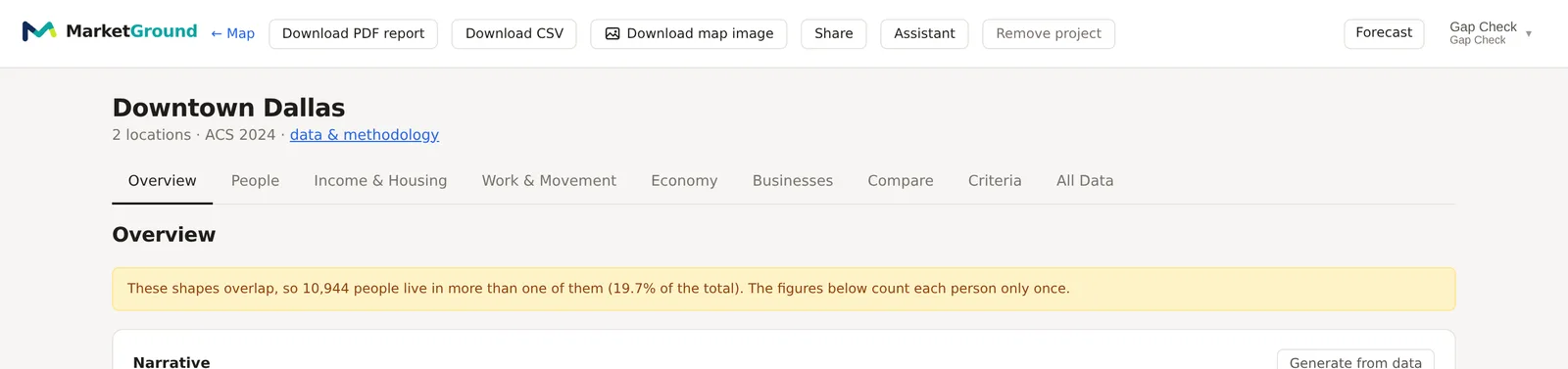
Map returns to the map with the project selected. Download PDF report builds the project's report as a PDF, with your logo, the map and every figure, and Download CSV saves a spreadsheet of every figure, one row per location and ring, with margins of error and a deduplicated total. Both are part of the Pro and Team plans. Download map image saves a picture of the map with the project's areas on every plan. Share makes a read-only copy of the report at a link, on the Pro and Team plans. Assistant opens a conversation about the project. Remove project takes the project out of every list without deleting anything. Each has a page under Forecasts, sharing and the assistant.
Under the bar, the project's name is followed by how many locations it has, the survey year the figures come from, and a link to the methodology page.
The tabs
The row of tabs is the page's table of contents. Each tab opens with the question it answers and a short note on what to bear in mind when reading it.
- Overview holds the headline figures, the locations side by side, the benchmarks, population over time and the decision record.
- People answers who lives in the market, with race and ethnicity, household size, internet at home, age by sex, households with children and education.
- Income & Housing covers how much people earn and what the housing is like, with the income and home value distributions, tenure, housing type, age of buildings, bedrooms, rent burden, vehicles and the two householder tables.
- Work & Movement covers who is here during the day, where residents work, how they commute, the jobs located in the area, transit access and traffic.
- Economy holds the economy indexes, with a page for each under The Economy tab.
- Businesses counts the businesses and places in the area by category and brand, with the competition, co-tenancy and business change tools.
- Compare puts the locations against one another, one variable at a time or two together, with the stress test and the cannibalization estimate.
- Criteria is the site criteria screener, described under Choosing between sites.
- All Data lists every figure behind the other tabs with a search box.
A long tab has a row of section links under its question, so that a section can be reached in one click and linked to directly.
Reading a tile
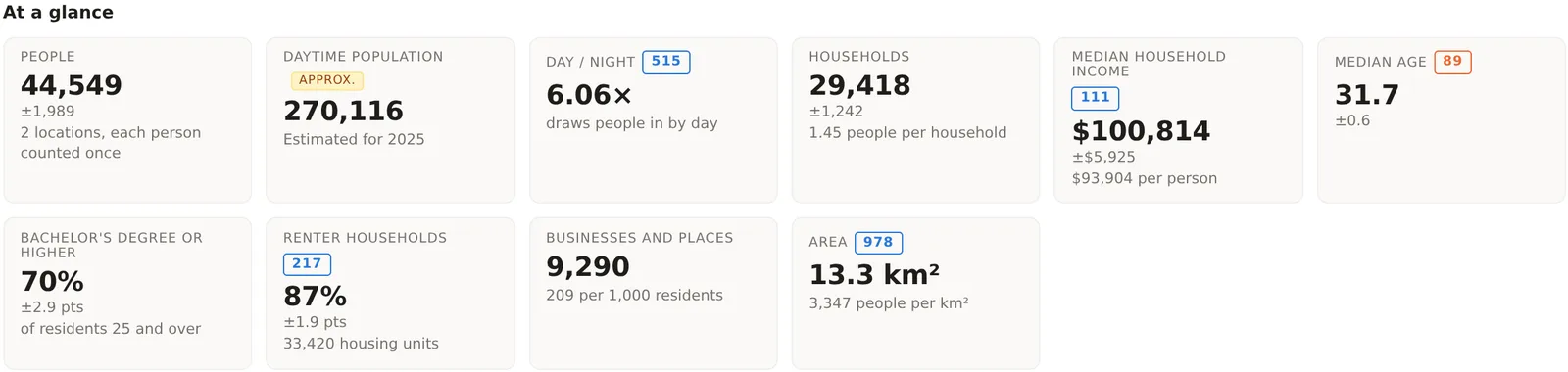
Most figures on the page are tiles. A tile has a label, the figure, and up to two lines beneath it. The first line under a survey figure is its range, written as a plus or minus, such as ±1,989 under a population of 44,549. That is the margin of error, and it means that nine times in ten a complete count would fall within that distance of the figure. The second line gives the context that makes the figure quotable, such as 1.45 people per household under Households or of residents 25 and over under a share with a degree.
A tile that compares with a benchmark carries a small chip beside its label with the figure as an index, the comparison area at 100. A chip reading 111 on median income means 11 percent above the comparison area, and 56 on Hispanic or Latino residents means a little over half the comparison area's share. Chips are blue when the figure is above the comparison area, red when below, and drawn with a dashed border when the difference is within the margin of error, which means the two cannot be told apart.
Approximate and low reliability
Two marks appear on figures that need care.
Approx. marks a figure that is worked out rather than published directly. A median income is rebuilt from the Census Bureau's income ranges, daytime population is modeled from jobs and visitors, and a few medians such as median gross rent are blended from published medians. Hovering the mark says how the figure was made, and the methodology page says more. An approximate median shows range not computed when no honest range exists for it.
Low reliability fades a figure whose margin of error is more than half of the figure itself. The figure is still shown, because it is the best estimate there is, but a reader should not lean on it. Small areas and small groups carry this mark most often, because the survey asked few households there. When more than a third of the figures on a tab are faded, a line above the table says so, so that a small shape does not read as a broken page.
The benchmarks and the comparison area
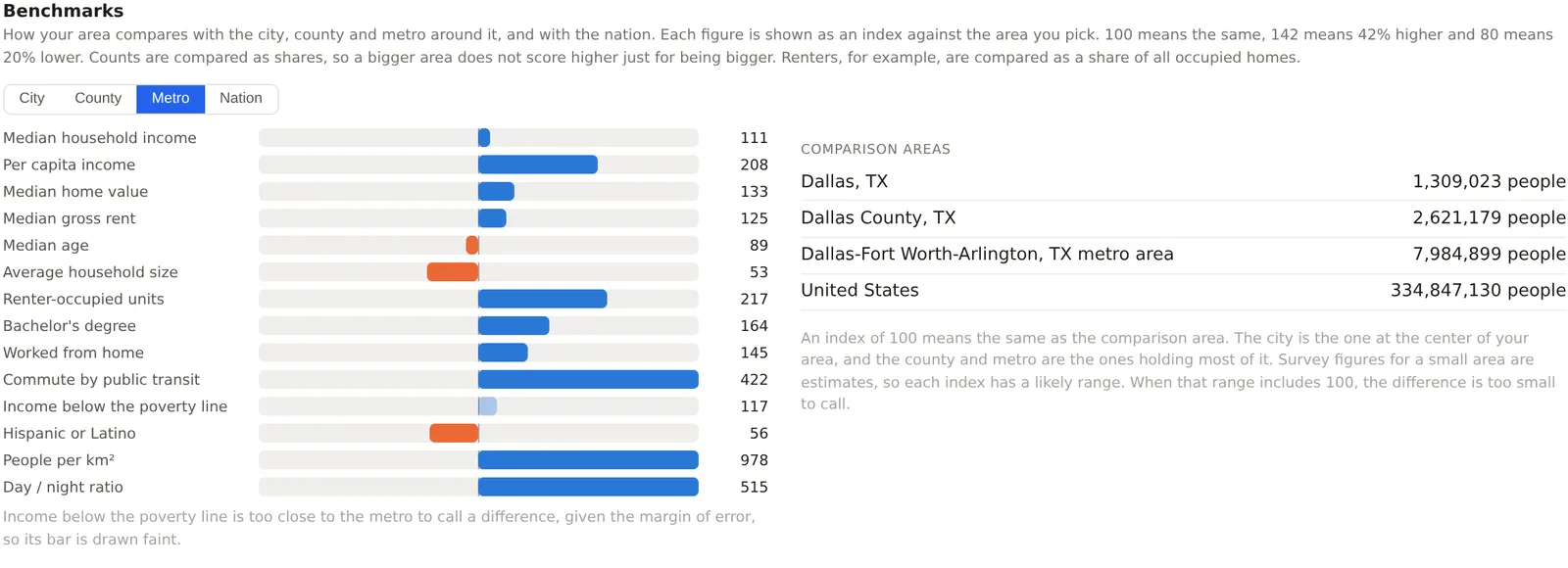
On the Pro and Team plans, the Benchmarks card on the Overview compares the project's combined figures with the city, the county, the metro and the nation, and the comparison area you choose there is the one every chip on every tab uses. The metro is chosen to begin with, because it is the market a site competes in.
The card shows each headline figure as a bar either side of 100, so that an area above its comparison on income and below it on household size reads at a glance, and it lists the comparison areas with their populations so that a reader knows what a metro figure was measured over. Counts are compared as shares, so a bigger area does not score higher for being bigger. Renters, for example, are compared as a share of occupied homes.
Overlap and the combined figures
When a project's areas overlap, a notice at the top of the Overview says how many people live in more than one of them and what share of the total that is. Every combined figure on the page counts each person once. The side by side tables show each location on its own row and the combined footprint on the last, so that the sum of the rows can be more than the combined total, which is the overlap.
An example
The Downtown Dallas project of two one mile circles reads 44,549 people with a range of plus or minus 1,989, and its notice says 10,944 of them live in both circles. Its median household income of $100,814 carries a chip reading 111 against the Dallas-Fort Worth-Arlington metro, whose median is $90,881, and its day to night ratio chip reads 515, because a downtown holds five times its share of people by day. Its Hispanic or Latino share reads 56, well under the metro's. Each of those chips is a single number that would take a paragraph to say in words, which is what they are for.
Things to know
The page is computed when it opens and again when an area changes, so a project with many large areas takes a few seconds to appear and shows a loading note while it does.
A figure for the combined footprint is not the average of the locations. It is the figure for the union of their shapes, with the people in any overlap counted once.
The survey year shown under the project name applies to the survey figures. Jobs, businesses, traffic and the daytime estimate each carry their own year beside them, because their sources publish on different schedules.
On a phone the tabs scroll sideways and the tables scroll within their cards.
Related pages
The Overview tab is where the page opens. What MarketGround measures explains where the figures come from, and the methodology page sets out how the margins are combined.