The Overview tab
The tab the analysis page opens on, with the headline figures at a glance, the locations side by side, the pins, the benchmarks, population over time, county momentum, the add-on datasets and the decision record.
What this is for
The Overview is the one tab to read if you read only one. It holds the figures a reader would quote, the project's locations side by side, the comparison with the market around them, and how the area has changed over time, so that a client can be given the shape of a market in a minute. The other tabs go deeper into each family of figures.
Where to find it
The analysis page opens on the Overview. Press View full analysis in the side panel, or choose Overview in the row of tabs from any other tab. It is included in every plan, with the Benchmarks card and the index chips on the Pro and Team plans.
The sections, from the top
Narrative
A box at the top for a written summary of the project. Generate from data asks the product's assistant to draft one from the figures on the page, which you can edit and save, or you can write your own. The saved text opens the PDF report, with a note of who edited it and against which data. The product proposes and the person decides, so nothing is saved until you save it.
At a glance
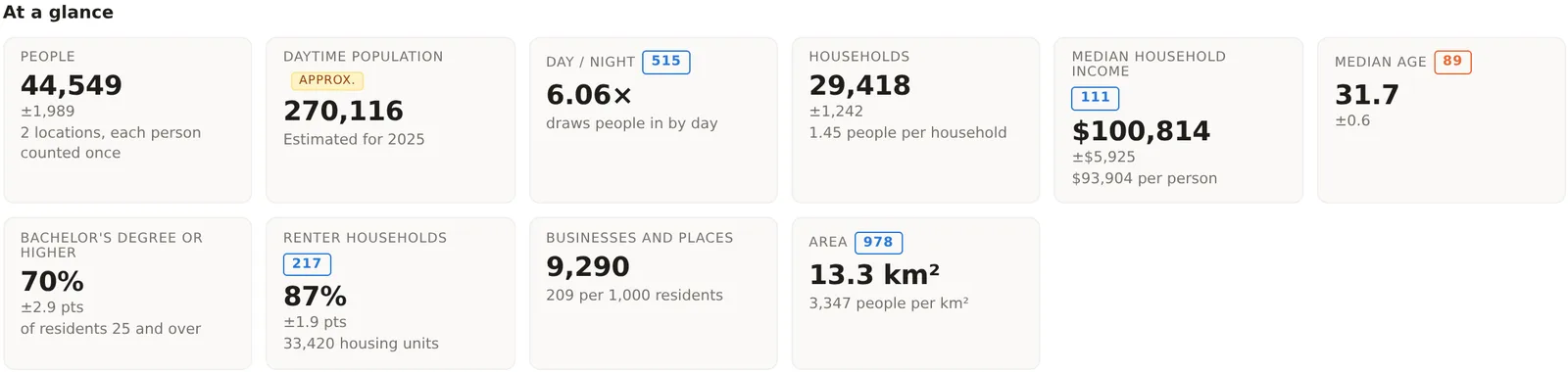
Ten tiles with the figures a reader would quote. People, the residents of the combined footprint with each person counted once. Daytime population, an estimate of who is in the area during the day, marked approximate. Day / night, the daytime figure for every resident. Households, with people per household beneath. Median household income, with per capita income beneath. Median age. Bachelor's degree or higher, as a share of residents 25 and over. Renter households, as a share of housing units. Businesses and places, the listed businesses inside the area, with the count per 1,000 residents. Area, in square kilometers, with people per square kilometer. The analysis page explains the range and the chip on each tile.
Locations compared
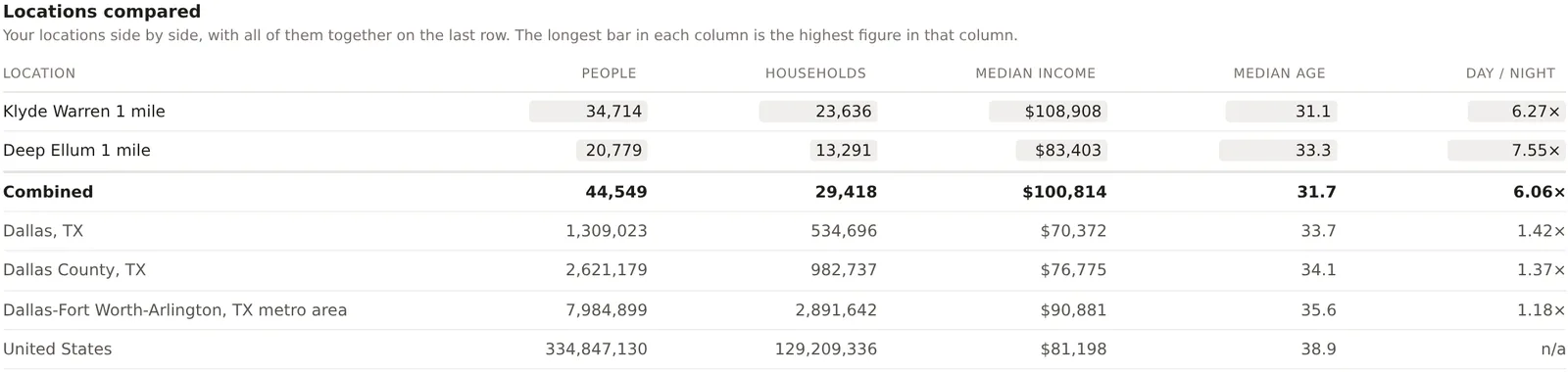
A table with one row per location, the combined footprint beneath, and on the Pro and Team plans a row for each comparison area, namely the city, the county, the metro and the nation. The columns are people, households, median income, median age and day to night ratio. Each column's bars are scaled so that the longest is the highest figure in that column, which makes the differences between locations visible without reading the numbers. A location with rings appears once for each ring.
Pins
If the project has pins, they are listed here with their kind, the areas each falls inside, and their notes, with a link to download them as a spreadsheet. Pins and notes describes them.
Benchmarks
The comparison of the combined footprint with the city, county, metro and nation, as bars either side of 100, with a picker for which of the four the page's chips compare against. The analysis page explains how to read it. Part of the Pro and Team plans.
Population over time
A chart of the combined footprint's population by year from 2016, with each location's own history in a table beside it and a toggle between night and day population. Trend and history explains the two sources behind the series and how to read a change.
County momentum
The growth of the counties the area sits in, from the Census Bureau's population estimates, with net migration by year as a small chart and, on the Pro and Team plans, the households and income moving in and out from IRS returns. The figures are for the whole county, never the area, and the section says so every time. Trend and history explains it.
Add-on datasets
One card for each dataset the organization may see, such as registered vessels by county, read through the area's block groups, and one line for each dataset the organization does not have, so that a reader knows the add-on exists. Add-on datasets explains how a dataset published for a county becomes a figure for an area.
Decision
A record of which site was chosen, against which criteria and why, with the candidates and criteria as they were at the time, and an outcome that can be added later, such as a lease signed or a store opened. Record a decision opens the form. Every decision in the organization is listed in settings. Decision history explains the record.
An example
For the Downtown Dallas project on 30 October 2026, the Overview read 44,549 people, a daytime population of 270,116, a day to night ratio of 6.06, 29,418 households at 1.45 people per household, a median household income of $100,814, a median age of 31.7, 70 percent of residents 25 and over with a bachelor's degree or higher, 87 percent of households renting, 9,290 businesses and places, and 13.3 square kilometers at 3,347 people per square kilometer. The Locations compared table put the Klyde Warren circle at 34,714 people and the Deep Ellum circle at 20,779, with the combined footprint at 44,549 because 10,944 people live in both. The Population over time chart showed the combined footprint growing from about 32,000 in 2016 to about 45,000 in 2025, a rise of 40 percent, with the two circles rising 34 and 44 percent.
Things to know
The Overview's tiles are a selection. Median home value, median rent and work from home live on their own tabs, and the PDF report and a shared page can carry the full set.
The chips on the Overview follow the comparison area chosen in the Benchmarks card. Change it there and every chip on every tab changes with it.
A project with one location has no overlap notice and no combined row, since there is nothing to combine.
Related pages
The analysis page explains the tiles, ranges and chips. The People tab is next. Trend and history and Add-on datasets cover two of the Overview's sections in depth.