Pins and notes
Markers you drop on the map at a competitor, a candidate corner or any other point of interest, with a note and your own fields attached, kept with the project and shown in its report.
What this is for
Not everything on a map is an area. A competitor's store, a corner you are considering, a landlord's building, the site a client mentioned on a call, are points, and what you want to keep about them is a note rather than a set of figures. A pin is a marker at a point with a name, a note and any fields you care to add, kept with the project so that it appears on the map, in the panel and in the report beside the project's areas.
Pins are the memory of a project. Three months later, a pin reading "Competitor, opened March, parking looked full on a Tuesday" is worth more than the figure for the block.
Where to find it
Pins are part of the Pro and Team plans. There are two ways to drop one. In the panel's Add to this project row, Drop a pin switches the toolbar to Pin mode. Or select Pin directly in the toolbar above the map, which is the sixth shape button. Either way a project must be selected, because a pin belongs to a project, and the toolbar says Select a project to drop pins into it when none is.
Step by step
- Select a project in the Projects section.
- Press Drop a pin, or select Pin in the toolbar. The toolbar reads Click the map to drop a pin, or click a business to pin it.
- Click the map where the pin belongs. A form headed New pin opens in the panel's Pins section with the pin's name box, the kind and a note box.
- Or, with the Retail layer on, click a business dot. The pin takes the business's name, category and address, and is marked as a competitor.
- Fill in the name and the note, choose the kind, add any fields with Add a field, and press Save pin. The pin stays on the map with its name.
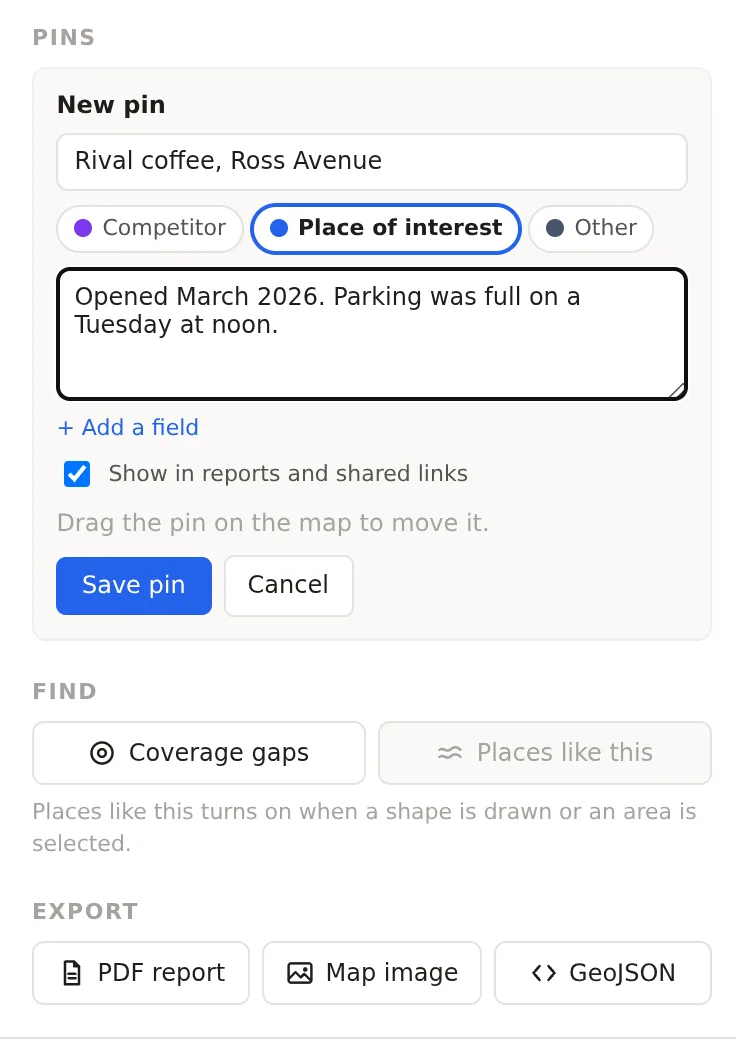
The pin form, one field at a time
Name. What the pin is called on the map and in lists. A pinned business starts with the business's name.
Note. Free text, as long as you like. This is where the reason for the pin goes.
Kind. One of Competitor, Place of interest or Other, chosen from three chips under the name. A pinned business starts as a competitor, a pin dropped on an empty spot as a place of interest. The kind groups the pins in the panel and the report, so that competitors read together.
Fields. Any number of label and value pairs of your own, added with Add a field, such as "Rent" and "$32 per square foot", or "Contact" and a name. They are kept with the pin and printed with it in the report.
Show in reports and shared links. A checkbox, on by default. Turn it off for a pin that is a private note, and the pin stays on your map but is left out of the PDF report and of any share link's page.
Position. After the pin is saved, drag it on the map to move it. The panel says Drag the pin on the map to move it while the pin is selected.
Reading the pins
The Pins section lists every pin in the project grouped by kind, with its name, its note and which of the project's areas it falls inside. Click a pin's name to select it, which centers the map on it and opens its form for editing. The cross beside a pin removes it after asking, since a note is your own writing and cannot be recovered. A Show on map checkbox at the top of the section hides or shows every pin on the map, and Download the pins as a spreadsheet saves them with their notes and fields as a CSV.
On the map, pins show as markers with their names. A pin inside a saved area is listed with that area on the analysis page's Overview, and the PDF report prints the project's pins with their notes and fields in a section of their own.
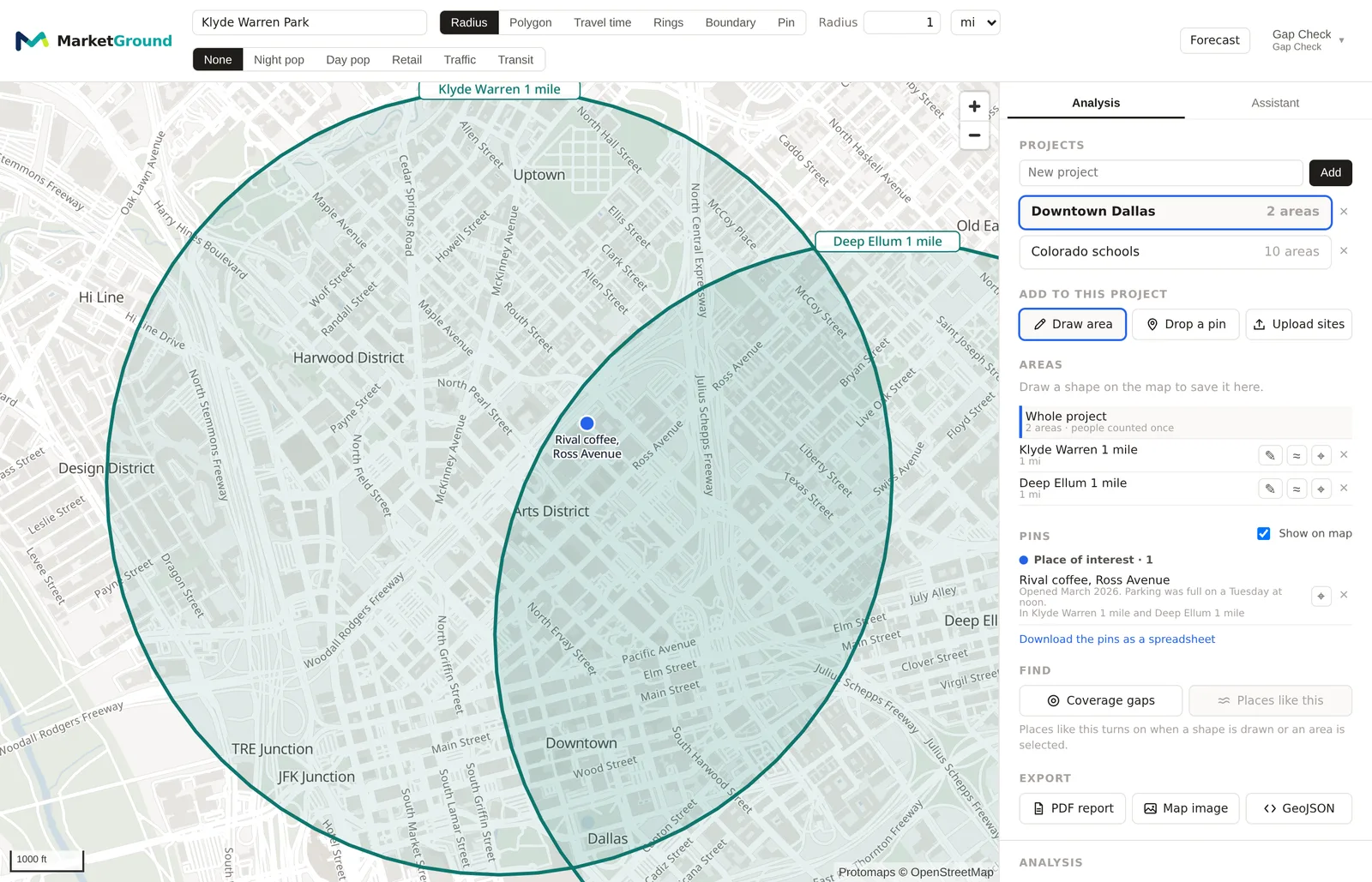
An example
A project comparing two corners in Dallas might carry a competitor pin on each nearby rival with a note on its hours and parking, an interest pin on the landlord's office, and a pin on a planned apartment tower taken from a news story, with a field for its unit count. The report then shows each corner with the pins around it, and a reader who was not at the site visit sees what the person who was saw.
Things to know
A pin does not change any figure. It is a marker and a note, not an area. To measure around a pin, draw an area at it.
Pins belong to the selected project, and each project has its own. Moving a pin to another project means dropping it again there.
An organization on the free plan that once held pins still sees them and can remove them, but cannot add more.
Removing a pin cannot be undone.
Related pages
The side panel describes the Add to this project row and the Pins section. The map describes the Retail layer whose dots can be pinned. The PDF report describes where pins appear in a report.