Editing a saved area
How to change a saved area's shape, size or name without losing it, how to drag an outline's corners, how to save the change in place or beside the original, and how to bring back an earlier shape.
What this is for
A saved area is rarely right the first time. The radius turns out to be too large, the drive time should have been fifteen minutes, the polygon missed a block, or the pin was a street off. Editing lets you change a saved area in place, so that it keeps its name and everything built on it, namely its place in the project, its line in reports and sheets, and its share links, all of which follow the new shape.
Every edit is kept. The last twenty shapes an area has had are listed in its history, and any of them can be shown on the map or made the area's shape again, so an edit is never a loss.
Editing is included in every plan. The kinds of area a plan can draw are the kinds it can edit, so a free account edits circles and polygons and a paid account edits everything.
Where to find it
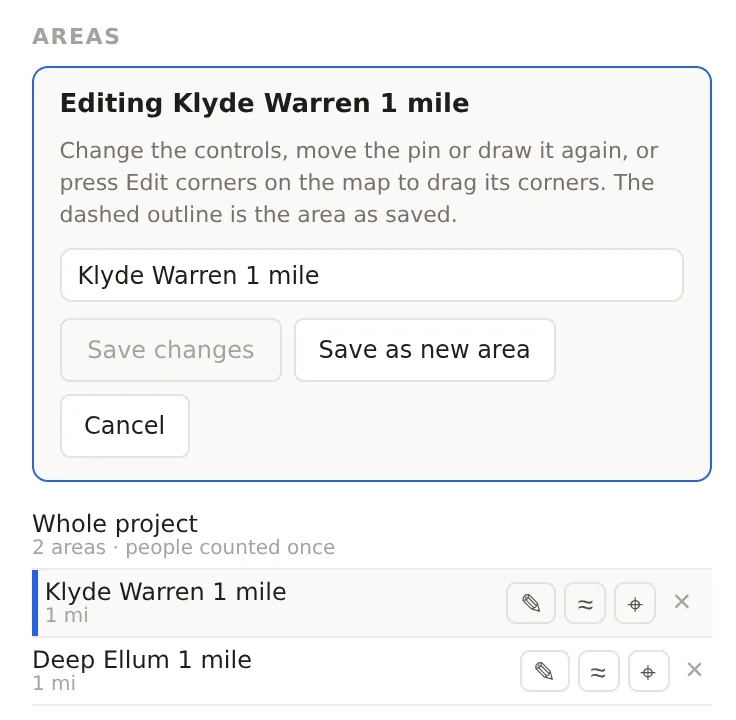
In the panel's Areas section, each saved area has a row of small buttons beside its name. The pencil opens it for editing, and renaming is part of the same box, since an area's name is edited where its shape is. The area's shape loads back into the drawing tools above the map with its original controls, the Areas section changes to an editing box headed Editing and the area's name, and the saved shape stays on the map as a dashed outline so that you can see what you are changing from.
Step by step
- In the Areas section, press the pencil beside the area.
- Change what you need. For a circle, change the radius or drag the pin. For a travel time, change the mode or the minutes or drag the pin. For rings, change the bands. For a polygon, drag its corners. For any kind, draw a new shape on the map in its place.
- Change the name in the box if you want to.
- Press Save changes. The area takes the new shape and the editing box closes. Or press Save as new area to keep the saved area as it is and add the edited shape beside it as a new area. Or press Escape, or the cancel button, to leave the area as it was.
Save changes stays greyed until something has changed, with a note reading Change the shape or the name first, so a press with nothing changed does nothing.
Editing the corners of an outline
A saved polygon opens with its corners already on, each a handle you can drag, with hollow dots along the edges that add a corner where you drag them. Drag a corner away from the shape to move it, and drag a corner onto its neighbor to remove it. The editing box's note says Drag a corner to move it, or a hollow dot on an edge to add one, and Done on the map finishes with the corners and lets you draw the shape again from scratch instead.
Any other kind of area can be turned into an outline. With a circle, a travel time or a boundary open for editing, press Edit corners on the map. The shape's outline gets handles, and from then on the area is a drawn outline. The editing box says what that means for each kind. A circle's pin stays where it is. A travel time becomes an outline that is no longer routed, so changing the minutes later will not redraw it. A boundary becomes a drawn shape measured by apportioning block groups rather than on the Bureau's whole blocks. Rings cannot be edited by corners, because their shape comes from the bands.
The shape history
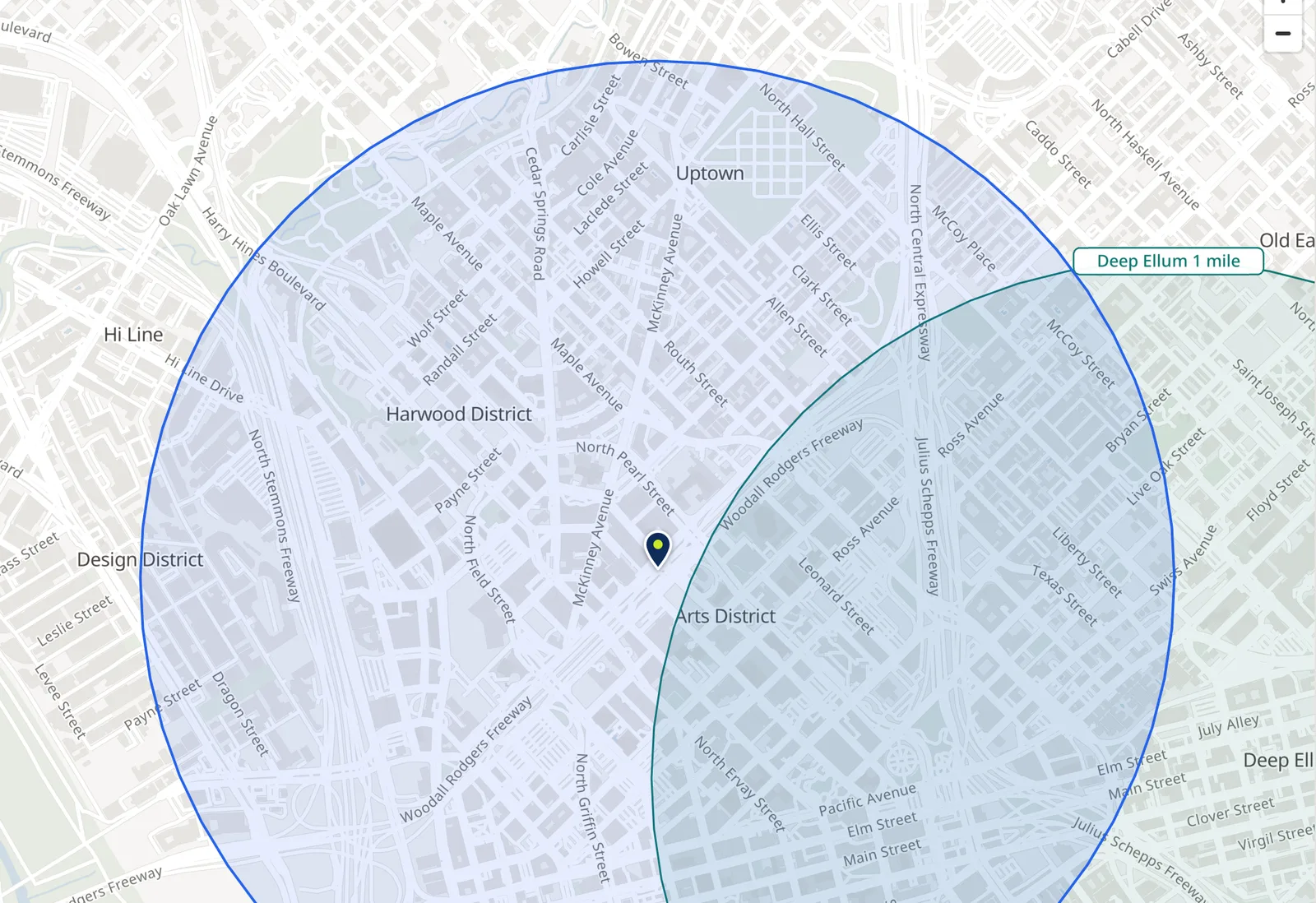
Each saved area keeps its last twenty shapes. Once an area has been edited, its earlier shapes are listed beneath it in the Areas section with the date each was saved. Beside each earlier shape are two buttons, one to Show this shape on the map, which draws it as a dashed outline so you can compare it with the current shape, and one to Make this the area's shape again, which restores it. When a shape is restored, the shape it replaces joins the list, so nothing is thrown away.
What follows an edit
Everything that was built on the area follows the new shape. The project's combined total and overlap are recomputed. The analysis page shows the new figures. A criteria sheet re-measures the area, a stress test reruns, a sales forecast rescores it, and a share link's snapshot is rebuilt, each taking a moment in the background. A PDF report made before the edit is a file you already have and does not change.
An example
A one mile circle on Klyde Warren Park saved on 29 October 2026 read 34,714 people. Opening it for editing, changing the radius to 0.5 and pressing Save changes kept the name and the place in the project and changed the population to the figure for the half mile, which in that part of Dallas is roughly a third of the full mile, because the inner half mile is parks and office towers. The one mile shape stayed in the history, and restoring it put the original figure back.
Things to know
On a Team plan two people can open the same area. The second to save is refused with a note that the area was changed by someone else, and can open it again to see the new shape, so an edit never silently overwrites another person's.
Opening an area for editing clears whatever unsaved shape was on the map, so save a drawn shape first if you want to keep it.
Editing does not use up the free plan's saved area allowance. Saving as a new area does.
A polygon may have up to 2,500 corners. A city drive time turned into an outline carries about 1,200, which leaves room for editing.
Related pages
Radius and polygon areas, Travel time areas, Rings and bands and Named boundaries describe the kinds of area. The side panel describes the Areas section where editing starts.