Rings and bands
Several areas around one point at increasing distances or travel times, such as 1, 3 and 5 miles, shown together so that you can see how the figures change as the area grows, with the band editor and the two kinds of table row explained.
What this is for
Most site work asks the same question at several distances at once. How many people live within a mile, within three, within five? A ringed area answers that in one go. It draws two to four areas around one point at increasing sizes and shows the figures for each, both as the whole area within each ring and as what each ring adds beyond the one inside it.
The one, three and five mile rings are the table every broker in the United States quotes, and the reason is practical. One mile is the neighborhood that walks or makes a short trip, three miles is the ordinary drive to a store, and five miles is the reach of a destination. Seeing the three side by side says at a glance whether a site's strength is close in or far out, and whether the market keeps growing as the rings widen or runs into empty land.
Rings can be drawn in distance or in travel time. Five, ten and fifteen minute drive rings are the same idea for a market where the roads matter more than the miles.
Where to find it
Rings is the fourth shape button in the toolbar above the map and is part of the Pro and Team plans. On the free plan the button shows a note and a link to the plans.
Step by step
- Select Rings in the toolbar. The band editor appears beside it with the standard table already chosen, 1, 3 and 5 miles.
- Click the map at the center. The rings are drawn and the panel fills with a table of figures by ring.
- To change the sizes, edit the numbers in the band editor, add a band or remove the outer one. The rings redraw.
- To draw rings in minutes rather than miles, press Minutes in the editor and choose a travel mode. The rings become travel time areas at each number of minutes.
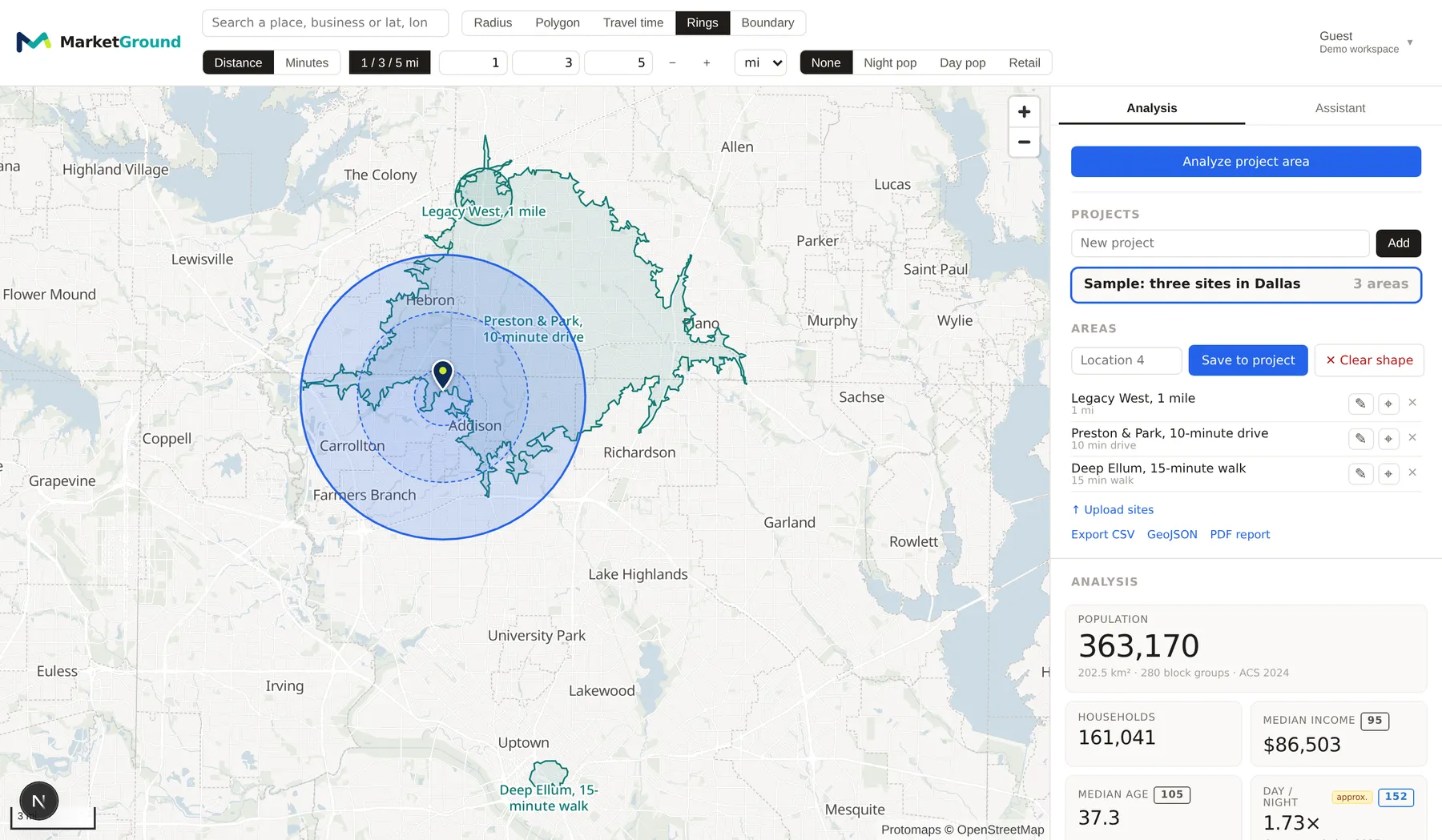

The band editor, one control at a time
The preset button shows the standard table for the unit in use, 1 / 3 / 5 mi for miles and kilometers or 500 / 1000 / 2000 m for meters, and 5 / 10 / 15 min for minutes. Press it to return to the standard sizes after you have changed them.
The size boxes hold each band's size, innermost first. Type any sizes you like. They are sorted into order and duplicates are dropped when you leave the box, so you can type them in any order. A ringed area has at least two bands and at most four.
Add a band adds an outer band, up to four. Remove the outer band takes one away, down to two.
The unit menu offers miles, kilometers and meters, and changing it resets the sizes to that unit's standard table.
Distance or Minutes. The first two buttons of the editor choose whether the bands are distances or travel times. With Minutes chosen, the travel mode buttons appear, Drive, Walk, Bike or Transit, with the same departure controls as a single travel time area, and the bands read 5 / 10 / 15 min by default. Travel time areas explains the modes.
Reading the results
The panel and the analysis page show a ringed area as a table with two kinds of row.
Within rows give the figures for everything inside each ring, from the center out, so the 3 mile row is the whole area within three miles, including the inner mile. These are the figures a broker's one, three and five mile table quotes, and they are the ones to use when you want the market at a given reach.
Between rows give what each ring adds to the ones inside it, the 1 to 3 mile band on its own, for example. These are the figures to use when you want to know where the people are. A site whose 1 to 3 mile band holds three times the people of its inner mile has its market in the middle distance, which matters for a store that needs walk-in trade.
Medians, such as median income, appear in the within rows only, because a median cannot be subtracted. The between rows carry sums and shares, with the band's own margin of error worked out for the band rather than subtracted, and a figure whose margin is more than half of it is faded as everywhere else in the product.
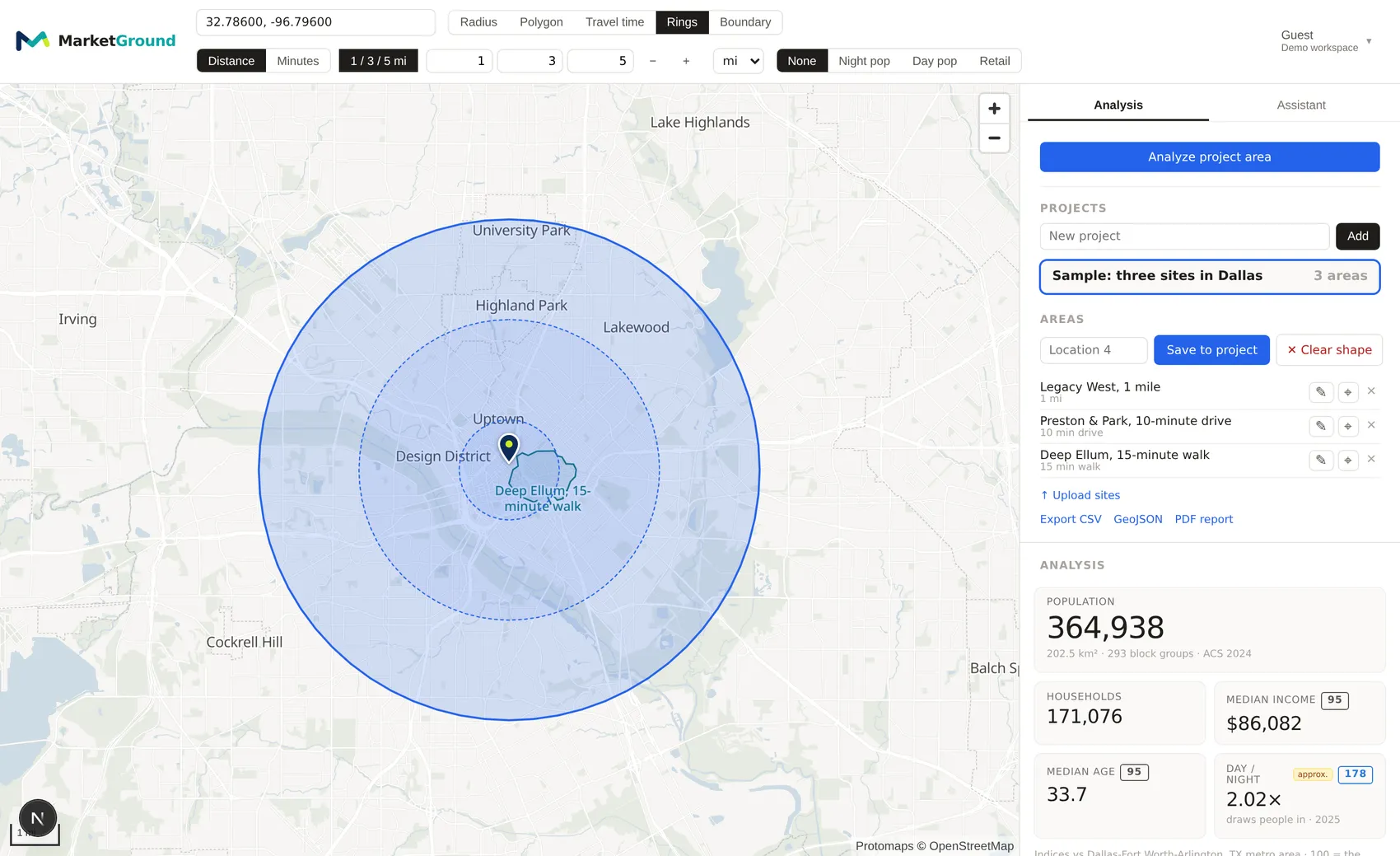
An example
A ringed area at 1, 3 and 5 miles on a suburban corner typically reads a small inner mile, a 1 to 3 mile band several times larger, and a 3 to 5 mile band larger still, because area grows with the square of the radius and a suburb is fairly even. A downtown site reads the other way, with a dense inner mile and bands that add less as they reach into lower density. The shape of the three numbers is the point of the table, more than any one of them.
Things to know
A ringed area is saved as one area with its bands, and the Areas section describes it as, for example, 1 / 3 / 5 mi. Its outermost band is what the project's combined total and the map use as its shape.
Rings in minutes are travel time areas and carry their notes, such as the point having been moved to the nearest road. They take a little longer to draw than distance rings, because each band is routed.
A ringed area cannot have its corners edited, because its shape comes from the bands. Change the sizes or move the center instead, as Editing a saved area describes.
Uploaded sites can be given rings as their default shape, so a list of fifty stores can get a one, three and five mile table each in one upload. Uploading your sites explains the setting.
Related pages
Radius and polygon areas draw a single circle. Travel time areas explain the modes rings can use. Editing a saved area covers changing saved rings, and The side panel describes where saved areas are listed.