The map, the search box and the layers
Every control on the map, namely the search box, the six kinds of shape in the toolbar, the data layers that color the map by population, businesses, traffic and transit, and the year control behind the population layers.
What this is for
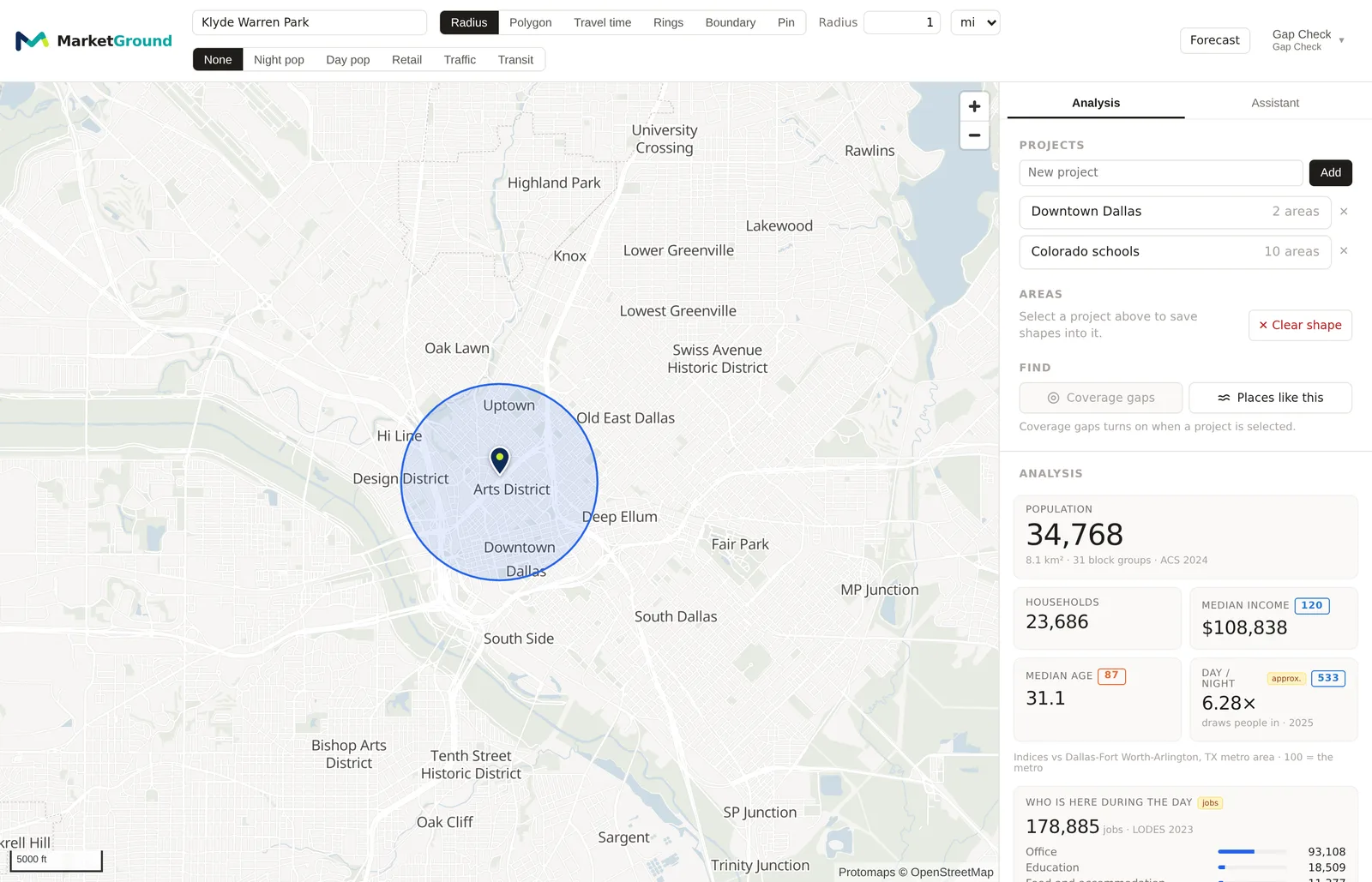
The map is where every analysis starts. It has three sets of controls, and this page describes each one so that nothing on the screen is a mystery. Across the top is the search box, which finds a place. Below it is the toolbar, which chooses what kind of shape you draw and holds that shape's settings. At the right end of the toolbar are the layer buttons, which color the map with data before you have drawn anything, so that you can see where people and businesses are and choose where to draw.
This page covers what each control does. The pages under Areas go into each kind of shape in detail, with the settings explained one at a time and worked examples.
Where to find it
Sign in and you are on the map. On a desktop screen the search box and toolbar are in a bar above the map and the panel is on the right. On a phone the search box is at the top, the toolbar's controls are in a sheet you pull up from the bottom, and the layer buttons live in that sheet too. The pictures on this page show the desktop layout.
The search box
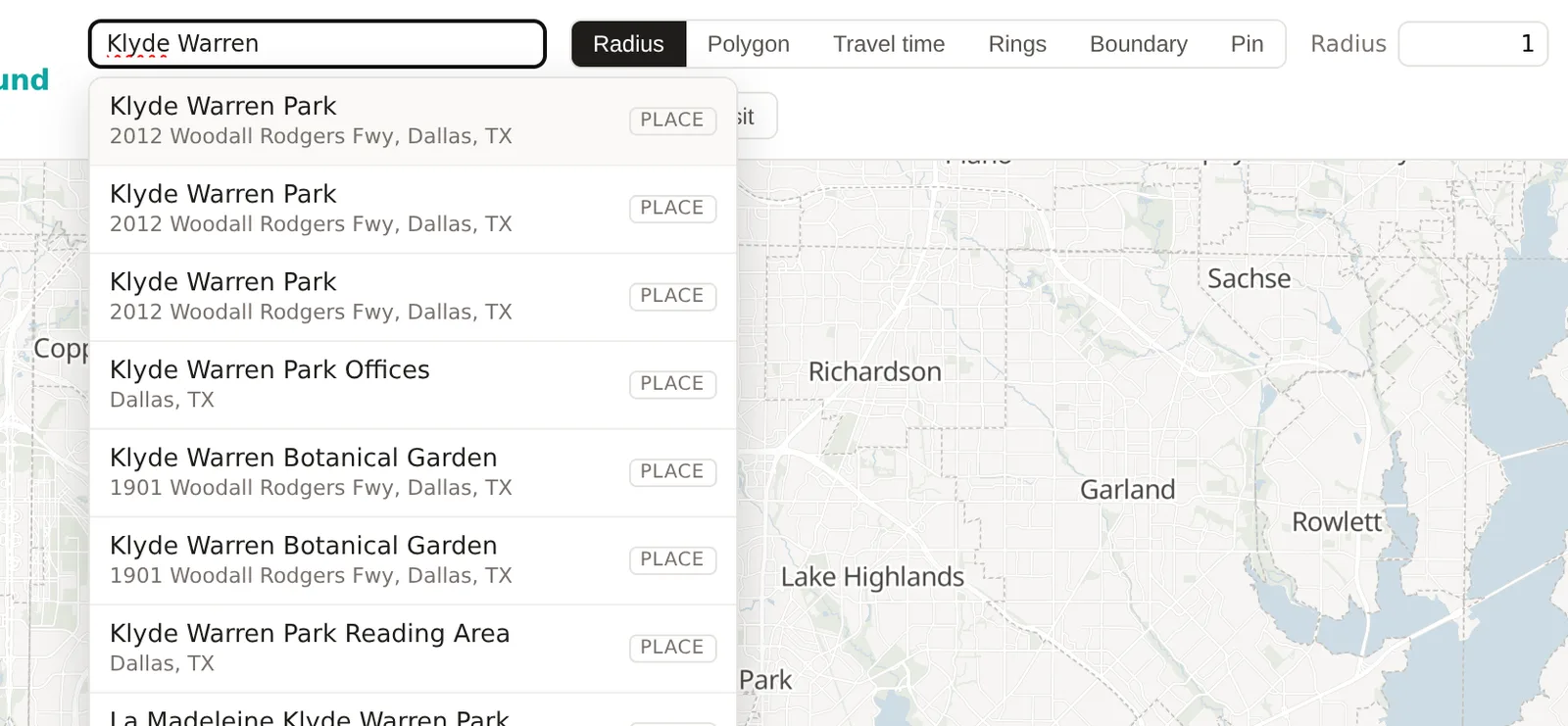
The search box reads Search a place, business or lat, lon. Type any of those and a list of matches opens beneath it. Each match carries a small badge that says what kind of thing it is, so that you know what choosing it will do.
- A city badge is a city or town from the census gazetteer. Choosing it centers the map on the city.
- An address badge is a street address matched by the Census Bureau's geocoder. The match is placed along the street, so it is usually right to within a building or two.
- A place badge is a listed business or point of interest. Choosing it centers the map on where the map sources put that business.
- A coords badge appears when you type a latitude and longitude, such as
32.7893, -96.8017, and takes you exactly there. - A badge reading ZIP, county, metro or tract is a named boundary. Choosing it centers the map on the boundary. On the Pro and Team plans, with Boundary selected in the toolbar, choosing it also makes the boundary your area.
Choosing a result centers the map on it and, with Radius selected, draws the circle around it at once, so that a search is also the quickest way to draw. With Pin selected, choosing a business pins that business. The list says Nothing found in the loaded area when nothing matches, and the search looks hardest near where the map is, so a business search for a shop in another state may need the map moved there first.
The toolbar
The toolbar's first group of buttons chooses what kind of shape a click on the map makes. There are six, and the settings for the chosen one appear beside the buttons.
Radius
The default. A click draws a circle around the point, and the box beside the button holds the radius with its unit in the menu beside it, mi for miles, km for kilometers and m for meters. The default is 1 mile, because that is where most retail work begins, a few minutes' drive in a city and a shape small enough to describe one neighborhood. Changing the number redraws the circle at once. Dragging the circle's center moves it. Radius and polygon areas has the detail.
Polygon
Click to place each corner of an outline and double-click to finish it. A polygon follows the streets and blocks you care about, so that a long shopping street gets a long thin shape. Every corner can be dragged after the shape is finished.
Travel time
Part of the Pro and Team plans. A click draws the area reachable from the point within a number of minutes, following the real road network or the transit timetables. The settings beside the button are the mode, Drive, Walk, Bike or Transit, the number of minutes, which can be 5, 10, 15, 30, 45 or 60, and for driving a Traffic switch that uses typical traffic for a chosen weekday and time of day. The default is a 10 minute drive, which is the distance customers typically travel to a neighborhood store. The Pro plan draws areas up to 60 minutes and the Team plan has no cap. Travel time areas explains the modes and the departure time.
Rings
Part of the Pro and Team plans. A click draws several areas around the point at once, at increasing distances or travel times, and the panel shows the figures for each. The default rings are 1, 3 and 5 miles, the bands brokers have used for decades, and the unit menu offers miles, kilometers and meters, or minutes by travel mode. Rings and bands has the detail.
Boundary
Part of the Pro and Team plans. With Boundary selected, the search box changes to read Search a ZIP, city, county, metro or tract, and a row of buttons chooses which kind of boundary to look for. Choosing a result makes that boundary the area, with its official edge, so that you can read figures for a ZIP code or a county as itself. Named boundaries explains each kind.
Pin
Part of the Pro and Team plans. With Pin selected, a click on the map drops a marker with a note instead of drawing a shape, and a click on a listed business pins that business. Pins belong to the selected project, so the toolbar says Select a project to drop pins into it when none is selected. Pins and notes has the detail.

The layers
The layer buttons at the right end of the toolbar color the map with data. They do not change any figure, and they are there so that you can see the shape of a market before you draw, or check a figure against the map after you have. One layer shows at a time, and None turns them off.
Night pop and Day pop
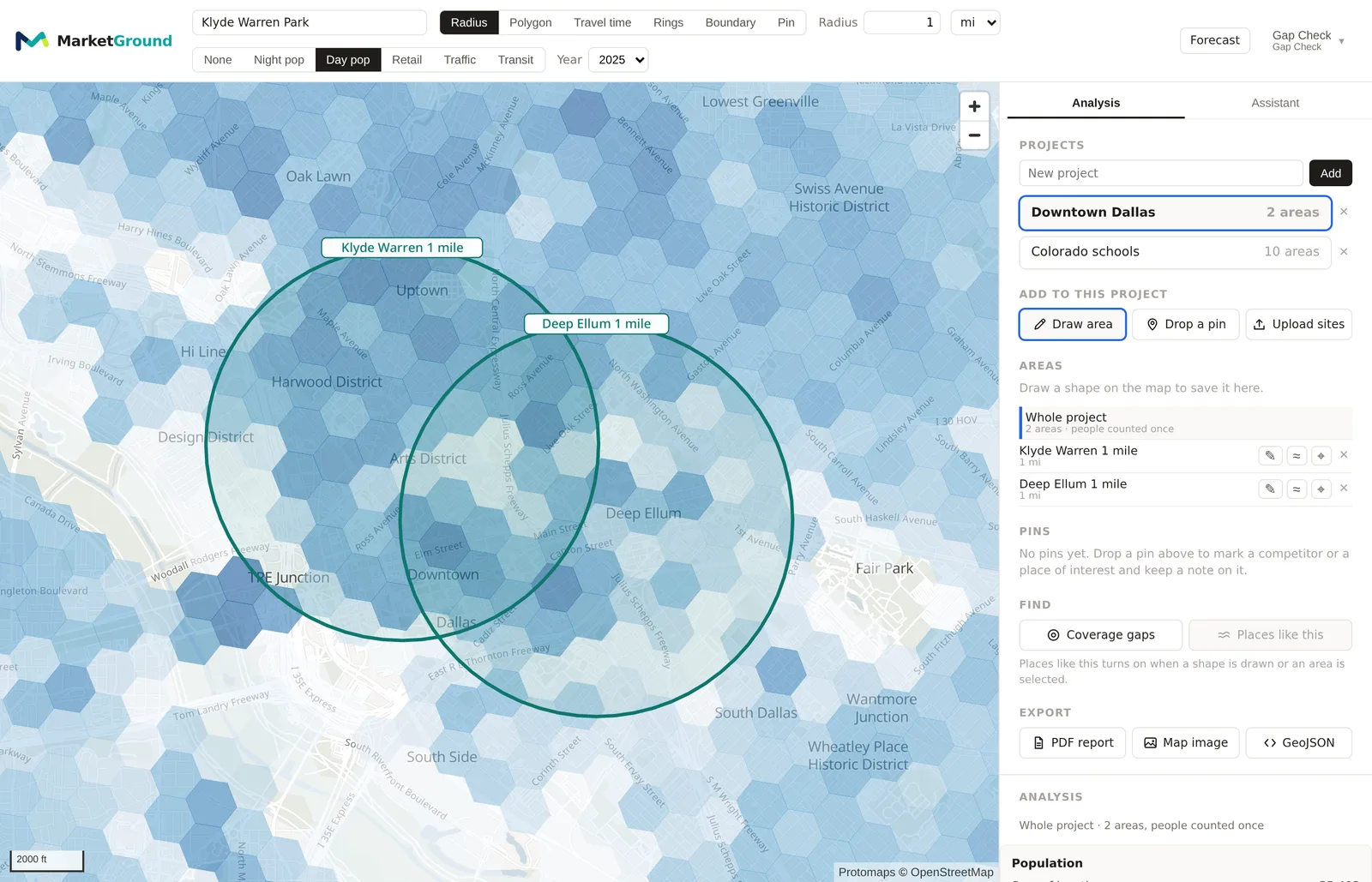
These two color the map by how many people are in each small hexagon of the map, Night pop by where people sleep and Day pop by where they are during the working day. Darker hexagons hold more people. The difference between the two is the difference between a residential area and a workplace, and switching between them over a downtown shows the daytime population arriving.
When either is on, a Year menu appears beside the buttons. The resident surface goes back to 2016, so that you can watch a neighborhood fill in or empty out over the decade. Choose a year and the map recolors. The analysis page's population history chart reads the same surface, which is why the two agree.
Retail
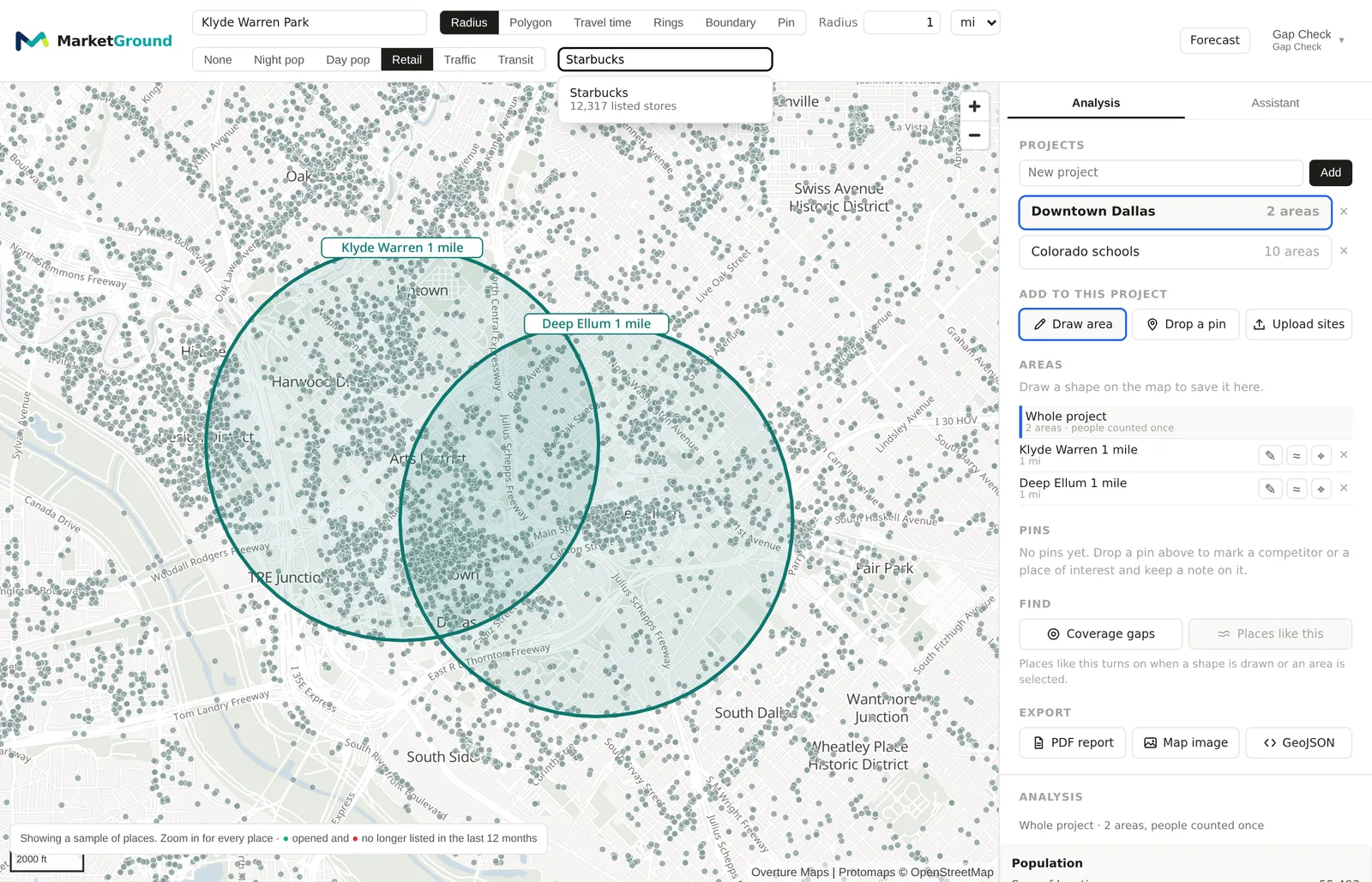
Retail draws every listed business as a dot, from about the zoom level of a neighborhood in. Hover a dot for the business's name and category and click it for more. A brand box appears beside the buttons when the layer is on, and typing a brand name into it, such as "Starbucks", keeps only that brand's dots, which is the quickest way to see a chain's footprint in a market. Businesses that were listed in an earlier monthly capture and are no longer listed show in red, so that a street of red dots is telling you something.
Traffic
Part of the Pro and Team plans. Traffic draws the counted roads with a width and color that step with their daily traffic, so that the freeways stand out and the quiet streets fade. A road that is not counted by its state is not drawn. Hover a road for its count. The analysis page's traffic section reads the same counts and adds the hour by hour pattern through the week.
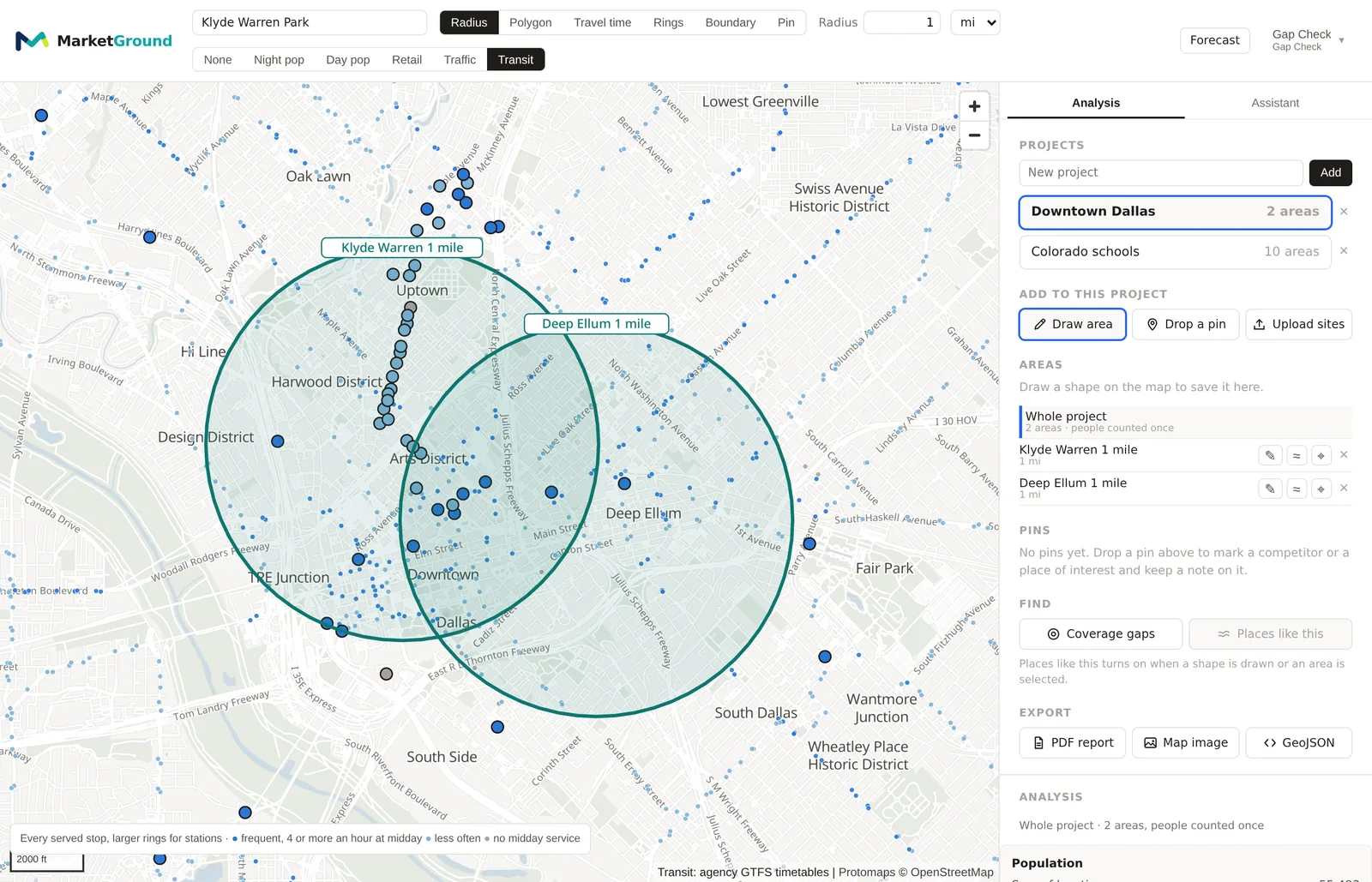
Transit
Part of the Pro and Team plans. Transit draws the stops and routes from each agency's published timetable, so that you can see at once whether an area is served by rail or by frequent buses. The analysis page's transit section counts the stops and the share of residents within a short walk of one.
Moving around the map
Drag to pan and scroll to zoom, or use the plus and minus controls. Double-clicking zooms in, except while you are drawing a polygon, when it finishes the shape. The map remembers where you were when you come back to it.
A drawn shape stays where it is while you pan and zoom. Dragging inside a circle or polygon moves the whole shape, and dragging a corner of a polygon moves that corner. The panel updates as soon as you let go.
Things to know
The layers are a picture, not a measurement. The figures in the panel and on the analysis page come from the shape you draw, worked out as What MarketGround measures describes, and they do not change when you switch layers.
The population layers are drawn on a hexagonal grid, so a hexagon that crosses a river or a railway holds the people on both sides. The analysis uses finer geography than the picture.
The Retail layer draws dots only from a neighborhood's zoom level inward, because at a city's zoom there would be more dots than pixels. Zoom in and they appear.
The Traffic and Transit layers show what is counted and published. A road with no count is not a road with no traffic, and an area with no routes drawn may be served by an agency that does not publish its timetable in the open format the product reads.
Related pages
Your first analysis walks through drawing and saving an area. The side panel, projects and saved areas describes the panel on the right. Each kind of shape has its own page under Areas, and the glossary defines the terms.