Your first analysis
Draw an area around a place you know, read the figures that appear beside the map, save the area to a project and open the full analysis, step by step with pictures.
What this is for
This page takes you from a blank map to a saved area with a full analysis, in five steps. It uses downtown Dallas as the example, because that is where the product's demonstration areas live, but every step works the same for any place in the United States. By the end you will have drawn a circle, read what is inside it, changed the shape, saved it into a project, and opened the analysis page where every figure lives.
Nothing here needs a paid plan. A free account can draw circles and polygons, save a few areas into one project and open the full analysis. Where a step mentions a feature that belongs to the Pro and Team plans, it says so.
If you would rather read about what the figures are before you draw anything, What MarketGround measures covers that. If you want to understand every control on the map, The map, the search box and the layers describes them one at a time.
Where to find it
Sign in and you arrive on the map. Everything on this page happens there, in the toolbar above the map, on the map itself, and in the panel down the right side of the screen. The product is designed for a desktop or laptop screen. On a phone the map works but the panel becomes a sheet you pull up from the bottom, and the pictures on this page show the desktop layout.
Step by step
1. Find the place
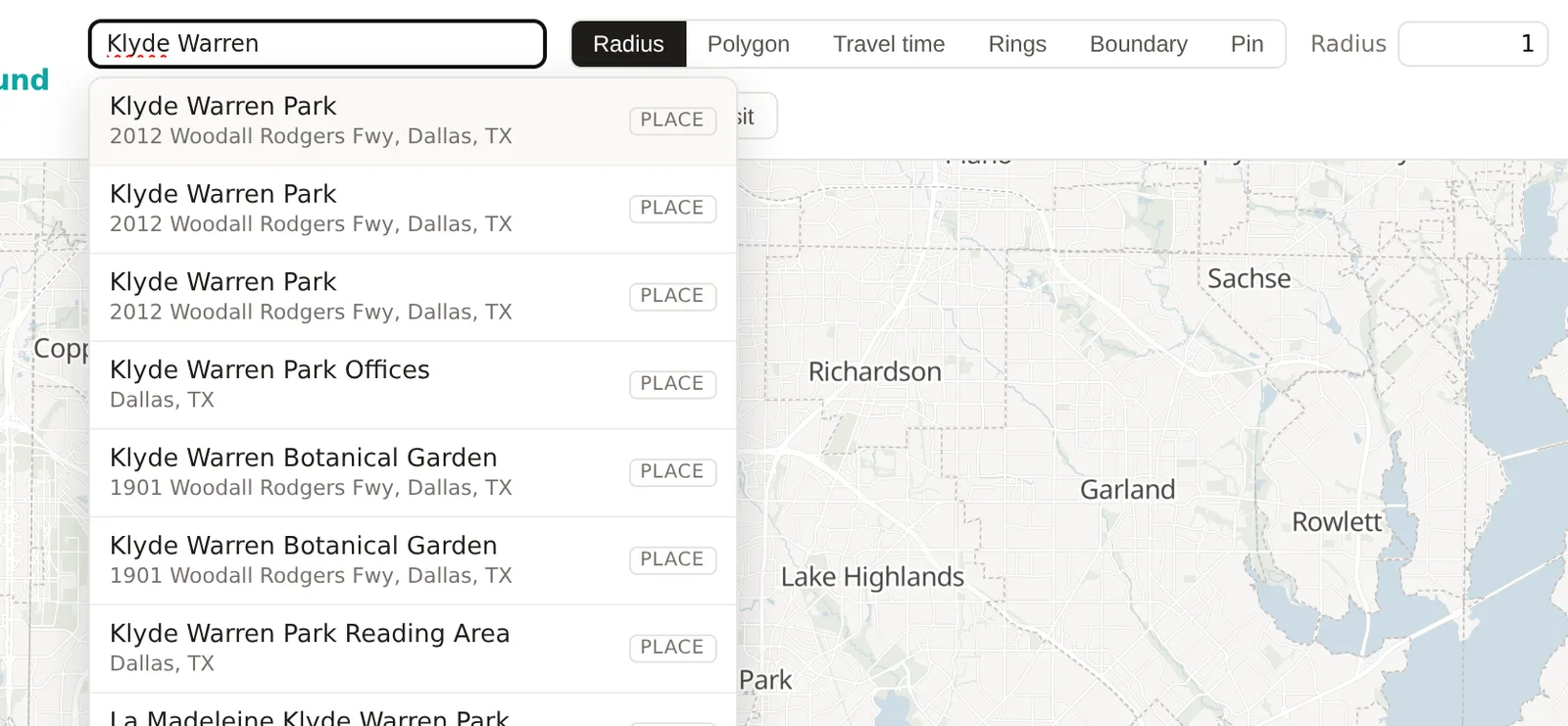
Click into the search box at the top of the map, which reads Search a place, business or lat, lon, and type the name of a place you know. For this example type "Klyde Warren Park". As you type, a list opens under the box with matches, each marked with what it is, such as a city, an address, a business, or a boundary like a ZIP code. Choose the park and the map flies to it and draws the default circle around it, which is the next step done for you.
You do not have to search. Clicking anywhere on the map does the same thing as the next step, so if you can already see the place you want, skip ahead.
2. Draw a circle
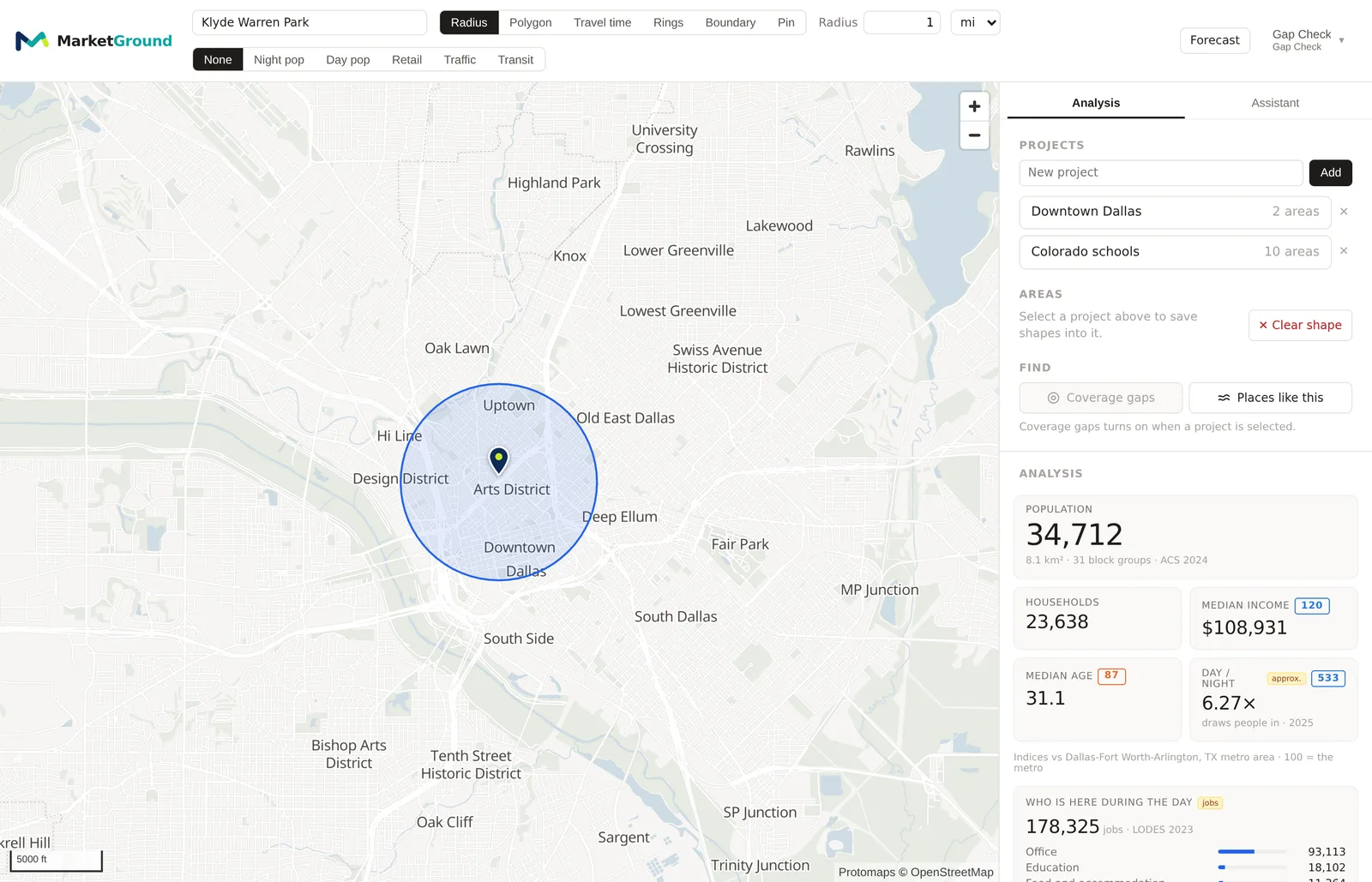
If the search did not draw it already, click the map at the point you want to be the center. A circle appears around the click, with a radius of one mile by default, so two miles across, and the panel on the right fills with figures for everything inside the circle. That is the whole product in one gesture. The figures are for the circle exactly, worked out from the census geography it covers, which What MarketGround measures explains.
The circle is a Radius area, the first of the shapes in the toolbar above the map. The box next to Radius holds the distance, 1 by default, and the menu beside it holds the unit, miles by default. Change the number to 2 and the circle grows and the panel updates. Change the unit to km for kilometers or m for meters. A one mile radius is the default because it is the distance most retail work starts with, a few minutes' drive in a city, and in a dense downtown it already holds tens of thousands of people, so for a single neighborhood you will often want a smaller one.
3. Read the panel
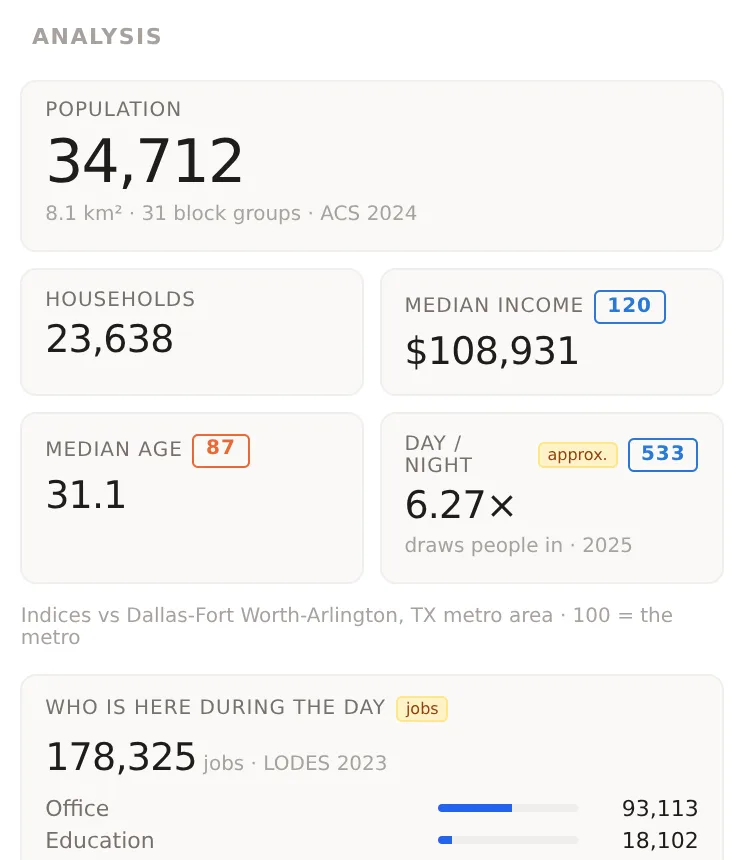
The panel's Analysis section shows four tiles first. Population is the number of people who live inside the shape, from the census and survey as described above. Households is the number of occupied homes. Median income is the household income in the middle of the area's households, half above and half below, so a few very rich households do not pull it up. Median age is the same idea for age. Under the tiles, Day / night is how many people are in the area during the working day for every person who sleeps there, so a figure of 6 means six times as many people at noon as at midnight.
On the Pro and Team plans each tile also carries a small chip that compares the figure with the metro, so that you can see at once whether the area's income is above or below the market around it. Further down, the same plans show jobs by industry, the traffic on the busiest counted road nearby, and what has opened and what is no longer listed among the area's businesses.
The panel reads Updating for a moment after every change to the shape. Wait for it to settle before reading the figures.
4. Change the shape
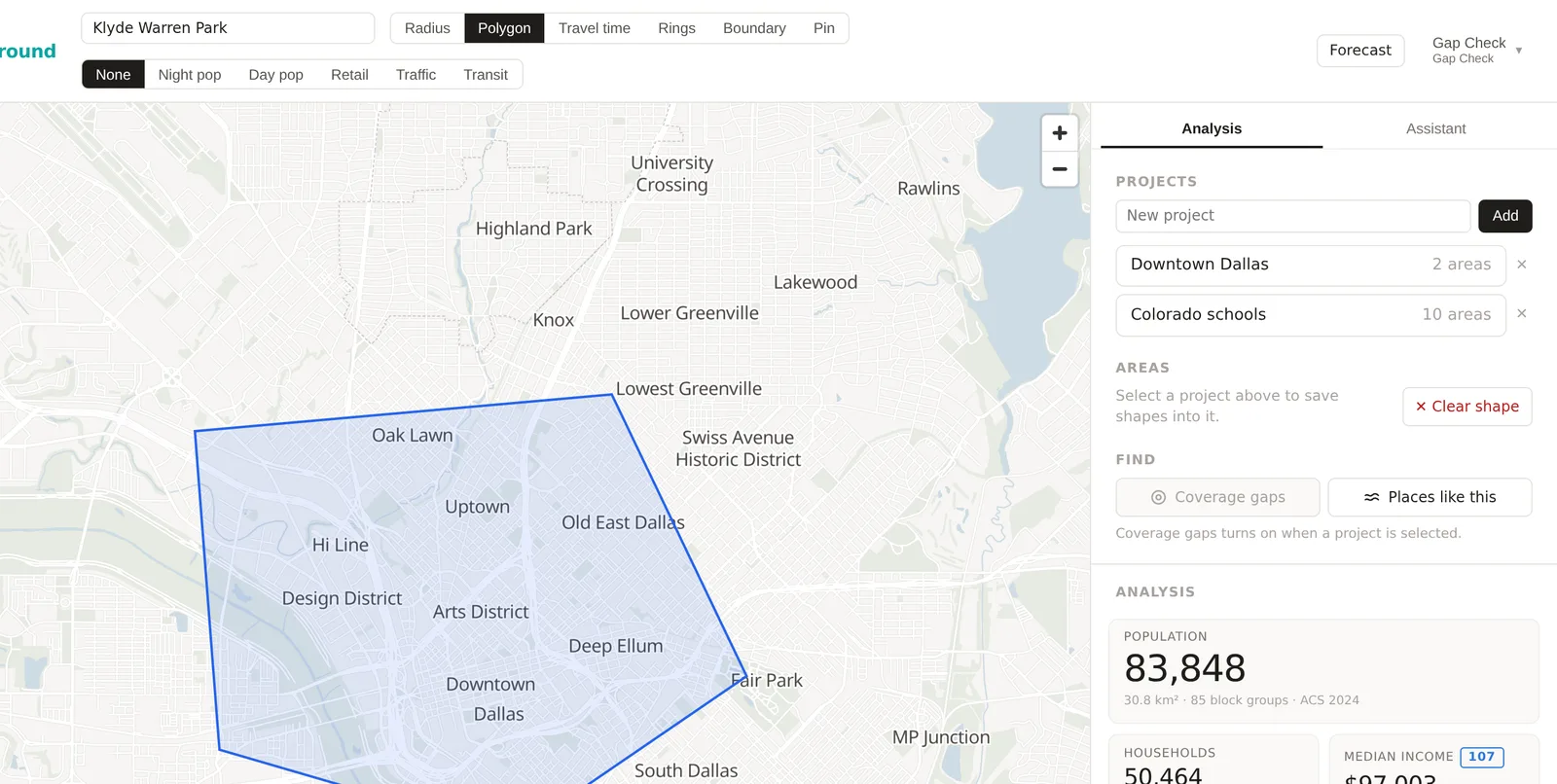
The toolbar above the map holds six kinds of shape. Radius is the circle you have. Polygon lets you trace any outline, corner by corner. Click to place each corner and double-click to finish. A polygon follows the blocks you care about, so a shopping district that is long and thin gets a long thin shape rather than a circle that takes in half a park.
Travel time, Rings and Boundary are part of the Pro and Team plans. Travel time draws the area you can reach from the point within a number of minutes by car, on foot, by bicycle or by public transit, following the real roads and timetables, which is what a customer's reach actually looks like. Rings draws several areas at increasing distances around one point, such as 1, 3 and 5 miles. Boundary lets you choose a ZIP code area, a city, a county, a metro or a census tract as the area itself. Pin drops a marker with a note rather than drawing an area, and is also on the paid plans. Each one has its own help page under Areas.
Try Polygon now. Click five or six points around a few blocks and double-click on the last one. The panel updates for the polygon.
5. Save it into a project
A project is a folder for the areas that belong to one piece of work. Until you save an area, it is only on the screen, and a reload loses it. In the panel's Projects section, type a name in the New project box and press Add. The project is created and selected, and the panel's Areas section changes from Select a project above to save shapes into it to a list ready for your first area.
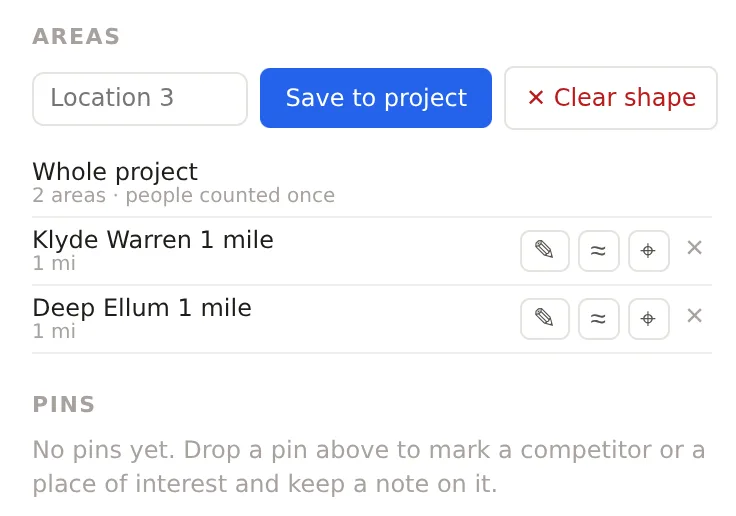
Then look at the Areas section. The shape you drew is waiting there with a name box that reads Location 1, a Save to project button and a Clear shape button. Type a name you will recognize later, such as "Klyde Warren 1 mile", and press Save to project. The area now belongs to the project, stays on the map with its name on a label, and is listed in the Areas section. Draw another shape and save it the same way, and the list shows the two, with a Whole project line above them that counts the people in any overlap once.
The free plan includes one project with up to four saved areas. The paid plans have no limit on either.
6. Open the full analysis
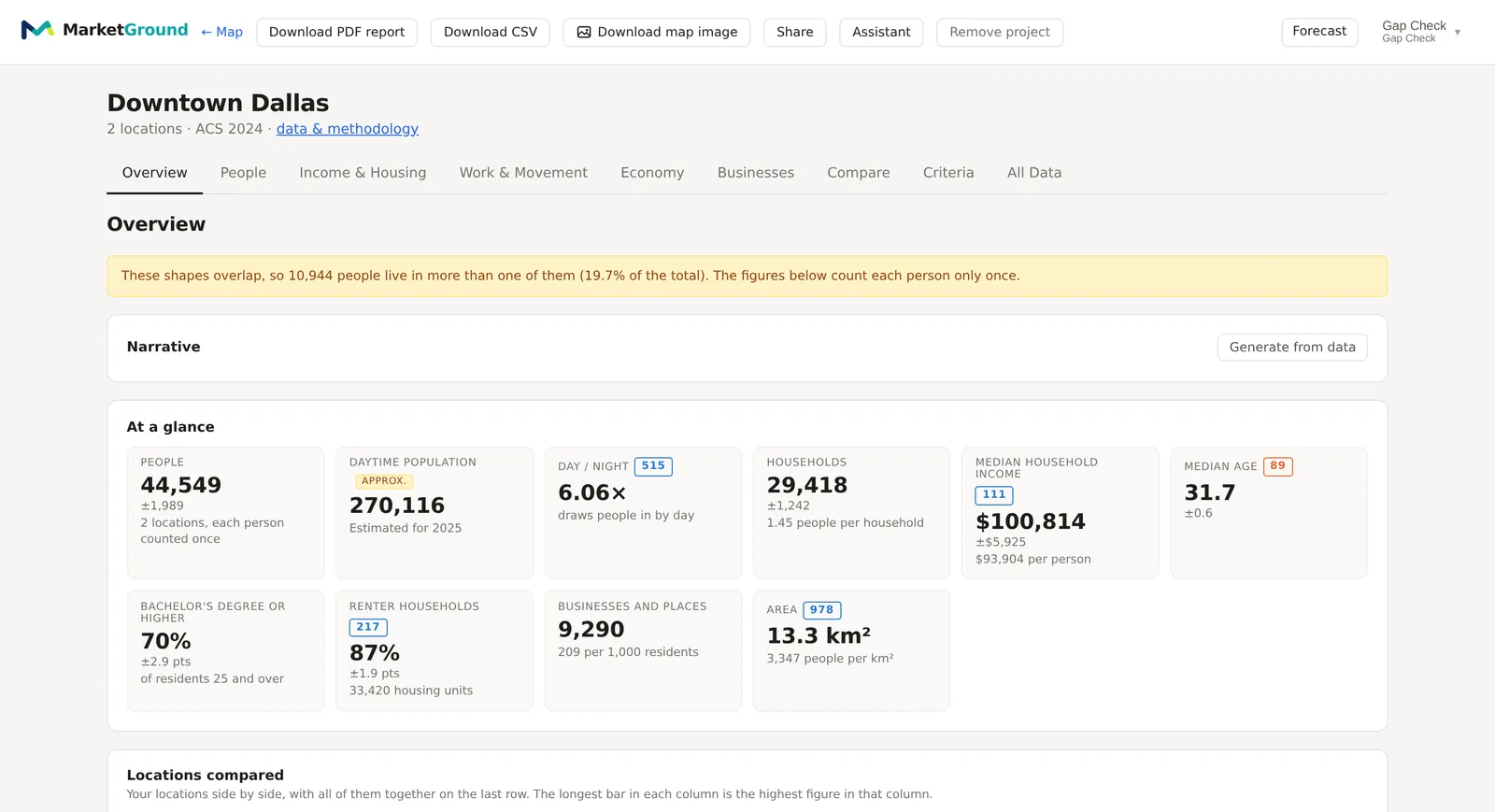
Once a project is selected, a blue View full analysis button sits at the top of the panel's Analysis section. Press it and the analysis page opens for the project. Across the top are its tabs, Overview, People, Income & Housing, Work & Movement, Economy, Businesses, Compare, Criteria and All Data. Each opens with the question it answers and holds every figure in that family, with charts, tables and, on paid plans, the comparisons against the city, county, metro and nation. The analysis page explains how to read it, and each tab has a page of its own.
An example
On 29 October 2026, a circle with a one mile radius centered on Klyde Warren Park in Dallas read a population of 34,714 people in 23,636 households, a median household income of $108,908 and a median age of 31.1. Its day to night ratio was 6.3, meaning that for every resident there were more than six people in the circle during the working day, which is what a downtown of offices, hotels and a convention center looks like. Your figures will differ a little as the data is refreshed each year.
The same circle moved a mile east, centered on Deep Ellum, read a population of 20,779 in 13,291 households, a median income of $83,403, a median age of 33.3 and a day to night ratio of 7.6. The two circles are the same size, a mile apart, and the figures describe two different mixes of people. That is the comparison the product is built to make, and saving both into one project puts them side by side, with the people the two circles share counted once.
Things to know
The figures appear a second or two after each change, and a large shape can take longer. If the panel reads Updating for more than a few seconds, the shape is probably very large, and a travel time area of an hour can cover a whole metro.
An area smaller than a city block can still have figures, because the product apportions each block group's people by where the blocks are. Below a few hundred people the survey figures carry margins as large as the figures, and the panel withholds a figure rather than show one that is unreliable.
A saved area keeps the shape you saved, not the controls that made it. If you later change the radius box, the saved circle does not change until you save the new shape over it, which Editing a saved area explains.
Nothing you draw is shared with anyone. A project is private to your account and, on a Team plan, to the people you invite.
Related pages
The map, the search box and the layers explains every control on the map. The side panel, projects and saved areas explains the panel in detail. What MarketGround measures says where the figures come from, and the glossary defines the terms.