Help › Forecasts, sharing and the assistant
Map image and data exports
The picture of the map with a project's areas, the spreadsheet of every figure for every location, the GeoJSON of the shapes, and the smaller exports of pins, the screener grid, the stress test, the decisions and the forecast's predictions.
What this is for
Not every reader wants a report. A deck needs a picture of the map. An analyst wants the figures in a spreadsheet. A GIS needs the shapes. The product offers each as a file, so that the work done here can go wherever the next step happens.
Where to find it
Map image and GeoJSON are in the side panel's Export row beside the PDF report, acting on the selected project. Download CSV and Download map image are in the top bar of the analysis page. The smaller exports sit where their figures are, on the Criteria tab, the stress test card, the decisions card in settings, the forecast and the pins section. The map image is included in every plan. The spreadsheet and GeoJSON exports are part of the Pro and Team plans.
The map image
Map image saves a PNG of the map with every area in the selected project drawn on it, in one frame that fits them all, with the project's name and the date, a numbered badge on each area, a legend of their names, and the pins the project holds that their owner left in reports, drawn as small diamonds and listed under the areas in the legend. The image is drawn in the browser on the light basemap whatever the page's theme, so it leaves the app ready for a deck, an email or print, and it keeps every corner of every shape, which a static map cannot once a project holds many drive times.
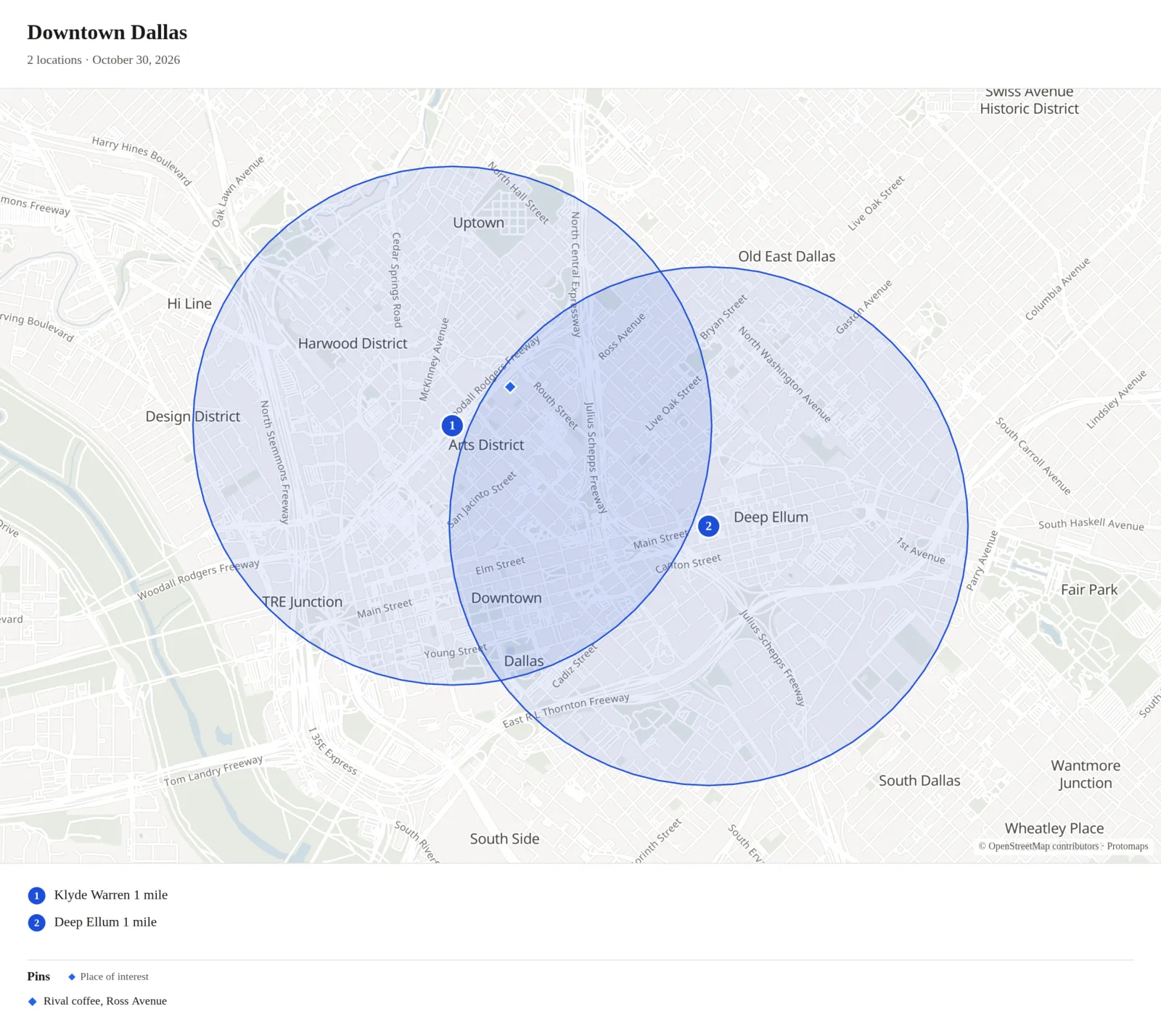
On the free plan the image carries the MarketGround mark and a line saying it was made here. On the Pro and Team plans it carries your organization's logo if one is uploaded, its contact block and its accent color, the three things the PDF cover uses, and no mark. Areas far apart share the one frame and come out small, each keeping its number.
The spreadsheet
Download CSV in the analysis page's top bar saves every figure for every location in the project, one row per location and one per ring of a ringed area, with the margin of error beside each figure and a final row for the combined footprint with each person counted once. The columns follow the groups and order of the All Data tab, with the economy indexes and the spending potential dollars on the plans that include them. The All Data tab describes the columns. Open it in any spreadsheet program.
GeoJSON
GeoJSON saves every area in the project as a GeoJSON file, with each area's name and settings as properties, so that the shapes drawn here can be opened in a GIS or another map. A ringed area is saved with its bands. It is the shapes alone, not the figures, which the spreadsheet carries.
The smaller exports
Pins. The Pins section of the side panel has a link to download the project's pins with their notes and fields as a CSV.
The screener grid. Download CSV on the Criteria tab saves the whole grid, every site against every line with its figure and result.
The stress test. Download CSV on the stress test card saves every site under every scenario.
Decisions. Download CSV on the decisions card in settings saves every decision in the organization with its project, site, client, concept, criteria, outcome and date.
Forecast predictions. The forecast's predictions table can be saved as a CSV for the project it scored, with each site's prediction, its range and its drivers.
An example
For the Downtown Dallas project, the map image is a frame of central Dallas with the two circles numbered 1 and 2, a legend naming them, and the one pin in the project as a diamond, which fits a slide as it is. The CSV has three rows, the two circles and the combined footprint, with about 120 columns of figures and their margins. The GeoJSON holds the two circles as polygons.
Things to know
The map image is drawn from the shapes and the basemap in your browser, so a very large project takes a few seconds to fit and draw.
The spreadsheet carries every figure the analysis page shows, including the withheld ones as blanks, so a reader of the file sees the same caveats the page shows as marks.
The GeoJSON is in the standard projection, longitude and latitude, which every GIS reads.
Related pages
The PDF report and Share links are the ways to deliver the report itself. The All Data tab lists the figures the spreadsheet carries, and The side panel describes the Export row.