The All Data tab and the CSV export
Every figure behind the other tabs in one searchable list, grouped by subject, with its range and its index, and the spreadsheet export in the top bar that carries the same figures for every location.
What this is for
The All Data tab answers "What are all the figures behind the tabs?". Every other tab is a selection and an arrangement. This tab is the whole list, every variable the analysis produced for the combined footprint, grouped by subject, with a search box above it, so that a figure that is not on any tab, such as households with three or more bedrooms or workers who commute by public transit, can be found in a moment and quoted with its range and its index.
The Download CSV button in the top bar is the same list for every location, as a spreadsheet, for anyone who wants to work with the figures elsewhere.
Where to find it
Choose All Data in the row of tabs. The list is included in every plan. The index chips beside each figure follow the comparison area chosen in the Benchmarks card on the Overview, which is part of the Pro and Team plans, as is the CSV export.
The list
The figures are grouped under headings in a fixed order, namely population, income, housing, education, race and ethnicity, employment, commute, vehicles, occupation, health insurance, internet, and the economy indexes. Each heading shows how many variables it holds and folds open or shut with a click, and the product remembers which groups you left open in this browser. With nothing remembered every group starts open.
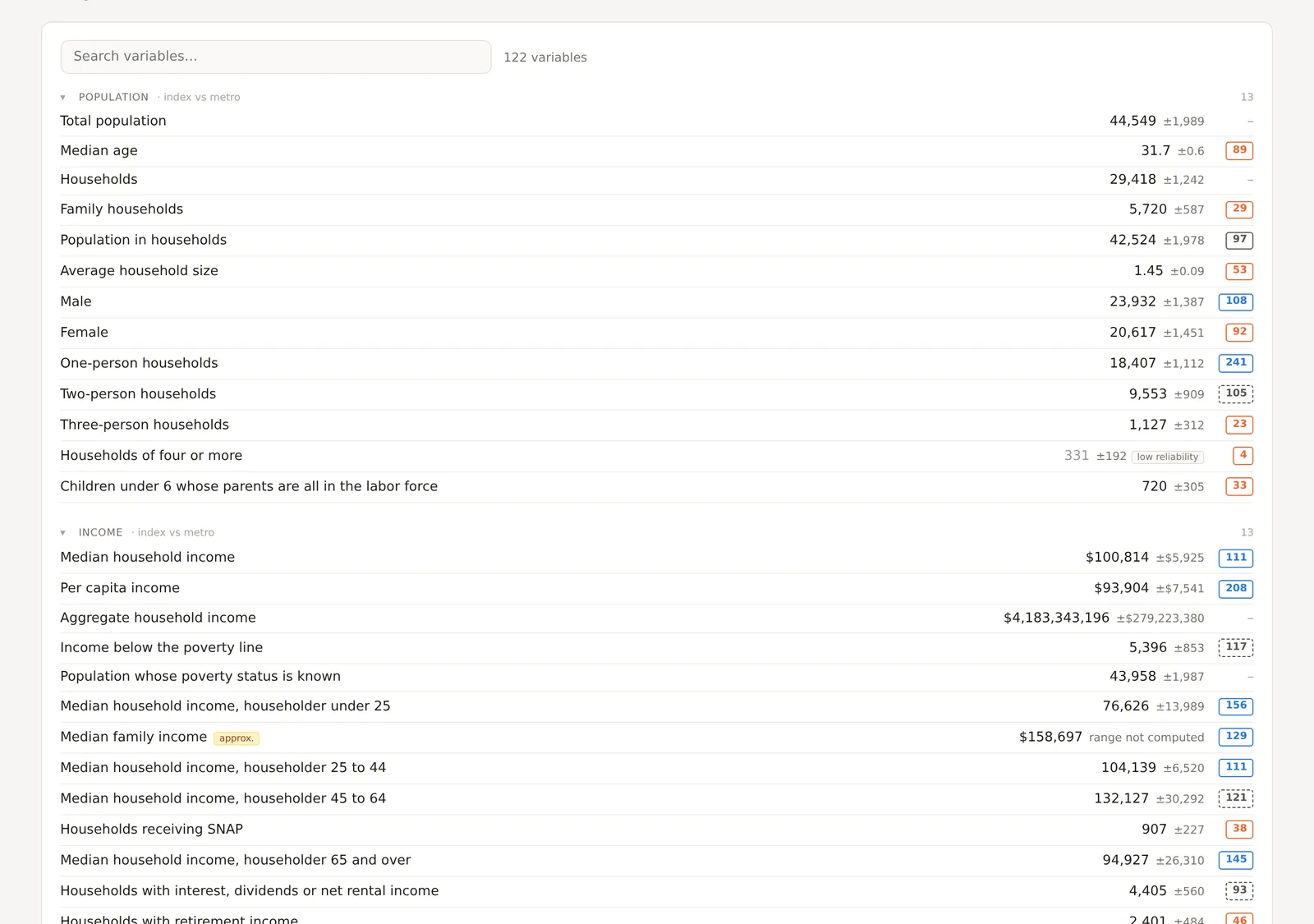
Each row is one variable with its label, its figure, its range as a plus or minus, and a chip with its index against the comparison area. A figure marked approx. is worked out rather than published directly, and hovering it says how. A figure whose range is more than half of it is faded and marked low reliability. A median without a range says range not computed. The count beside the search box says how many variables there are in all.
Searching
Type into Search variables and the list shows only the rows whose label contains the words, with every group that has a match opened. "bedroom" finds the three bedroom rows under housing, "transit" finds the commuters by public transit, and "index" finds every economy index. Clear the box and the list returns to the groups as you left them.
The index chips
A chip gives the figure as an index against the comparison area, 100 meaning the same. A count is compared as a share of its universe, so a bigger area does not score higher for being bigger, and a chip with a dashed border means the difference is within the margin of error. The chip is missing on a figure that is a universe itself, such as total population, because a count of everyone has nothing to be a share of. The analysis page explains the chips, and the comparison area is chosen in the Benchmarks card on the Overview.
The CSV export
Download CSV in the top bar saves a spreadsheet with every figure for every location in the project, one row per location and per ring of a ringed area, with the margin of error beside each figure and a final row for the combined footprint with each person counted once. The columns are the variables in the same groups and order as this tab, and the economy indexes and the spending potential dollars join them on the plans that include them. Open it in any spreadsheet program. The export is part of the Pro and Team plans.
The GeoJSON export, which saves the shapes rather than the figures, is in the side panel's Export row and is described in Map image and data exports.
An example
Searching the Downtown Dallas project's All Data for "commute" on 30 October 2026 found four rows under commute, namely workers 16 and over at 35,377, commute by public transit at 997 with a chip of 422 against the metro, worked from home at 9,117 with a chip of 145, and median commute at 18 minutes with a chip of 71. Those four say in one glance that downtown residents take transit four times as often as the metro, work from home half again as often, and travel a third less time when they do travel, which is a sentence a reader would otherwise have to assemble from three tabs.
Things to know
The list is for the combined footprint. For one location's figures, use the CSV, the Compare tab or a project holding only that location.
A variable the plan withholds is listed by its group with a note saying which plans carry it, rather than left out silently.
The chips follow the comparison area on the Overview. Change it there to compare against the city or the county instead of the metro.
Related pages
The Compare tab comes before this one. The analysis page explains ranges, chips and marks, and Map image and data exports covers the other exports.