Help › Forecasts, sharing and the assistant
Share links
A read-only copy of a project's report at a link anyone can open, with your branding, an expiry and an optional passcode, how the copy is refreshed, what a reader sees, and how links are managed and revoked in settings.
What this is for
A PDF is a file that goes stale the day it is sent. A share link is the project's report as a page, with the same tabs the owner sees, that a client or a colleague can open in a browser without an account, and that is refreshed when the project changes. It carries your logo and contact details, it can expire and it can ask for a passcode, and it can be revoked at any moment from settings.
Anyone holding the link sees every figure in the project. The dialog says so plainly because it is true, and it is the reason the link is shown once and never again.
Where to find it
Share in the top bar of a project's analysis page opens the dialog. Every link the organization holds is listed under Shared report links on the Organization tab of settings. Share links are part of the Pro and Team plans.
Step by step
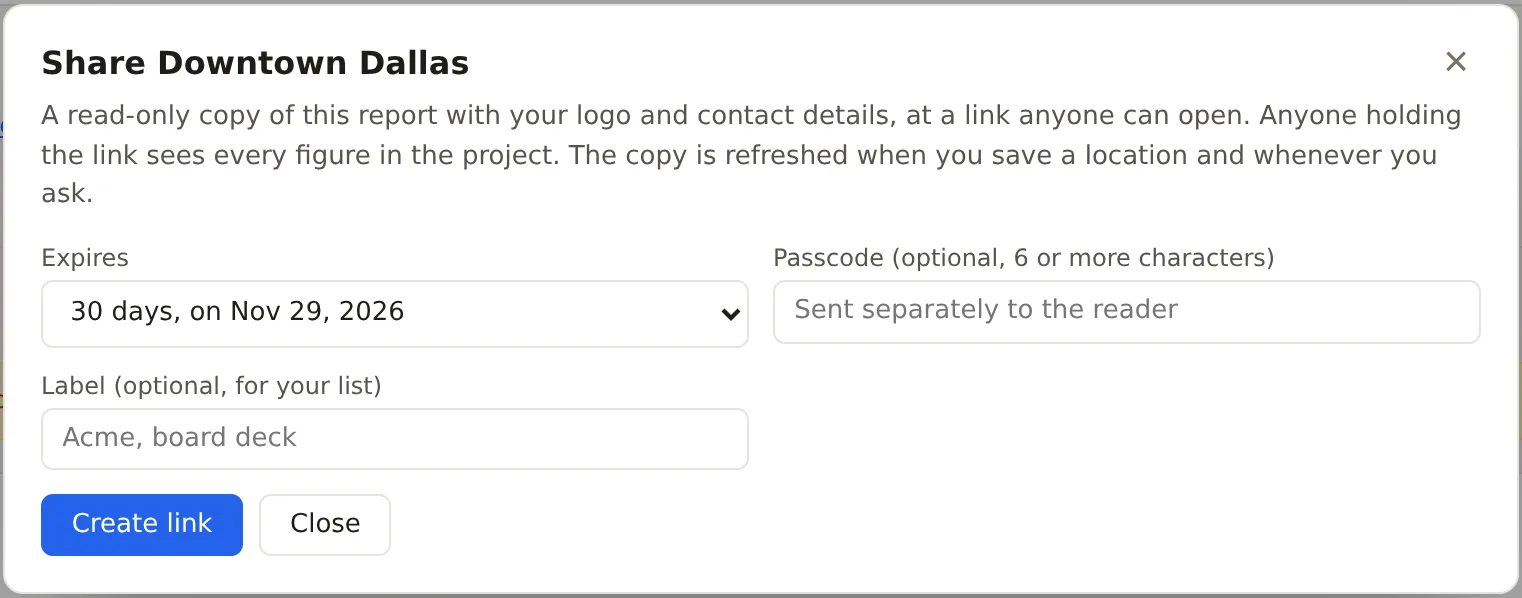
- Open the project's analysis page and press Share. The dialog is headed with the project's name.
- Choose when the link expires, 7, 30, 90 or 365 days from today, with the date shown beside each choice.
- Optionally set a passcode of six or more characters, which the reader must enter before the report opens. Send it separately from the link.
- Optionally give the link a label, such as the client's name or the deck it goes in, for your own list.
- Press Create link. The link is shown once, with a button to copy it. Copy it now, because the list below and the settings page never show it again.
- The copy of the report is built in the background and the page the link opens says so until it is ready.
What the reader sees
The link opens the report as a page with the same tabs and figures the owner sees, under your logo, accent color and contact block from the branding card in settings, and without the controls that change anything. The reader can move between the tabs and read every figure, chart and comparison, the screener grid, the stress test and the decision if there is one. The page asks not to be indexed by search engines, and the part of the link that names the project never reaches any server but the product's, so a preview card in a chat or an email shows nothing about the project.
A reader who arrives without a passcode is asked for it. A reader who opens an expired or revoked link is told to ask the person who sent it for a new one.
Keeping the copy current
The copy behind a link is a snapshot, so that a reader sees the same figures the owner saw and the page opens at once. It is rebuilt when a location in the project is saved, and whenever you press Refresh on the link in settings, so a change to a shape or a new area reaches the reader. A change to a threshold or a note does not rebuild it on its own, which is what Refresh is for.
Managing links
The Organization tab of settings lists every link with its project, its label, its expiry, how many times it has been viewed, how many readers signed up from it, and its status. Refresh rebuilds its copy and Revoke stops it at once. A member may manage any link, and a viewer only reads the list. The link itself is not shown there.
Things to know
The link holds every figure in the project. Share it as you would share the PDF, and set a passcode when it goes beyond the people you would send the PDF to.
A link's copy is a snapshot of the project at the time it was built, so a reader can see figures the owner has since changed until the copy is refreshed.
Revoking a link cannot be undone. Make a new one if it is needed again.
Related pages
The PDF report is the same content as a file. Map image and data exports covers the other ways out. Team members and invitations explains who may manage links, and Plans, limits and usage covers the branding card.