Team members and invitations
How an organization's members share its projects, the four roles and what each may do, inviting someone by email, accepting an invitation, changing roles, leaving, and how seats are billed on a Team plan.
What this is for
A Team organization is a set of people who share every project in it. Each person has a role that says what they may do, from reading alone to managing the billing, and the Members card in settings is where they are invited, given their role and removed. A personal account has one member and no card to manage.
Where to find it
Settings, the Organization tab, the Members card. An invitation arrives by email with a link that opens the product's invitations page. The card is part of the Team plan, and a Pro organization sees its one member.
The four roles
Owner can do everything, including billing. The person who created the organization is its owner, and an owner can make another member an owner.
Admin invites and manages members and edits projects.
Member creates and edits projects, drops pins, uploads sites, runs the tools and makes reports and share links.
Viewer has read-only access to every project and its analysis, and sees the lists in settings without the buttons.
The product decides what each role may do, and a button someone may not use is not shown to them.
Inviting someone
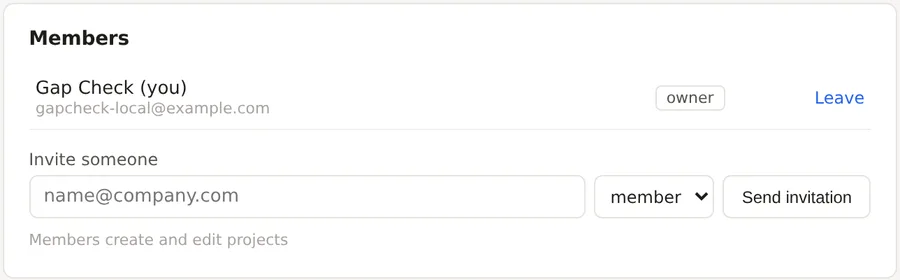
- On the Members card, type the person's email address into the box reading name@company.com under Invite someone.
- Choose the role from viewer, member, admin or owner.
- Press Send invitation. The person receives an email with a link, and the card lists them as Invited, not yet joined until they accept.
- The person opens the link, signs in or creates an account with that email, and accepts. They then see the organization's projects with the role they were given.
On a Team plan every membership change moves the seat count on the next invoice, which the card says above the form. Five seats is the minimum.
Changing roles and removing people
An admin or owner changes a member's role from the menu beside their name, and removes a member with the control beside it. A member can Leave the organization themselves. An owner cannot leave while they are the only owner, so make another member an owner first.
Working in more than one organization
A person can belong to several organizations, their own personal workspace and a team or two. The Working in line on the Organization tab says which one the session is in, and the switch beside the account name in the top bar changes it. Projects, pins, sheets and reports belong to the organization they were made in.
Things to know
An invitation is tied to the email address it was sent to, and accepting it requires signing in with that address.
Roles apply to the whole organization, not to single projects. Everyone in a Team sees every project.
Share links, branding, decisions and the usage allowances belong to the organization, so a member's work counts against the organization's allowances and carries its branding.
Related pages
Billing covers seats and the invoice. Plans, limits and usage covers what the Team plan includes, and Share links says who may manage a link.